How to Add Halation in DaVinci Resolve for Free (No Studio, No Plugins)
Halation is the red glow around bright highlights on film. Here’s how to add it in the free version of DaVinci Resolve with an adjustment clip, a curve, a blur and Screen mode.

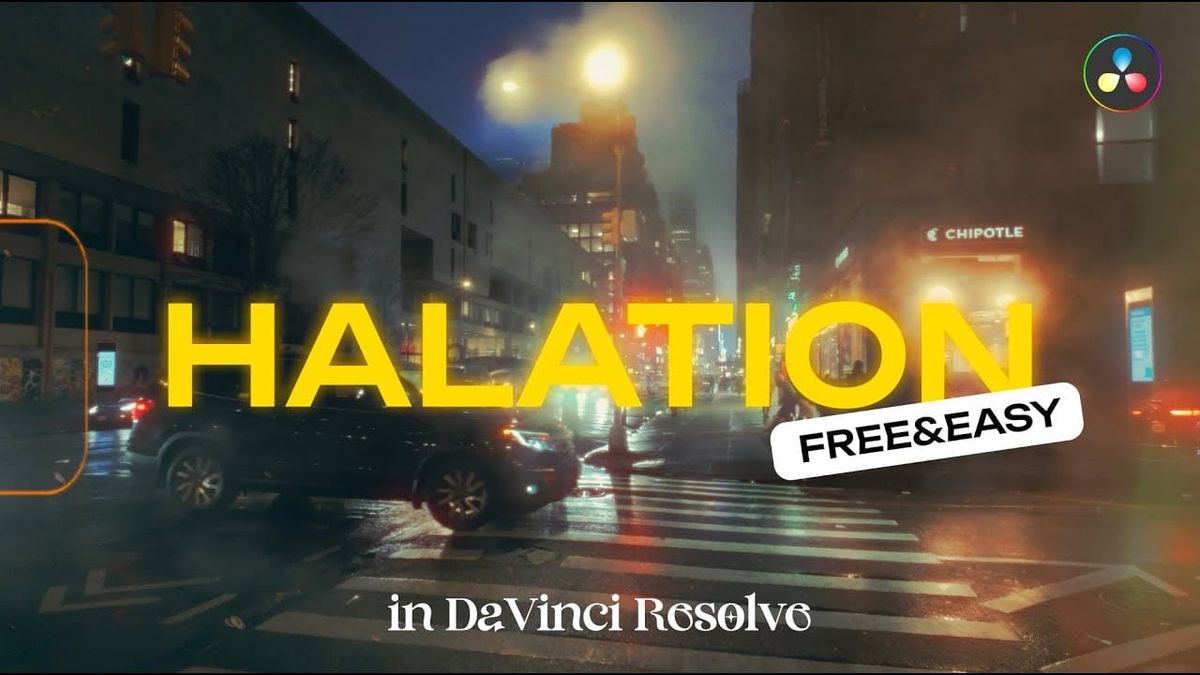
Halation is the soft red glow that forms around bright highlights on film, and it has become one of the most copied parts of the film look. DaVinci Resolve Studio has built-in tools for it, but the free version doesn’t include them.
In a tutorial on his YouTube channel, Alex Ray walks through both approaches: the native Studio tool, and a workaround for the free version using an adjustment clip, a curve, a blur and a blend mode.
What Halation Is
On color film, bright light passes through the emulsion layers, reflects off the back of the film base and comes back through. It mostly exposes the red-sensitive layer, which sits deepest in the film, so the result is a reddish halo around highlights.
Film stocks include an anti-halation layer to limit the effect, but some of it still comes through. Many filmmakers now want that glow on purpose, because it’s one of the clearest visual cues that something was shot on film.
Digital sensors don’t produce halation on their own, so it has to be added in post. For a broader look at film-emulation tools, see The Best Film Emulation Plugins for DaVinci Resolve.
The Studio Method

Resolve Studio users can add halation natively on the Color page. The tutorial uses Studio’s built-in halation effect, and Resolve 19’s Film Look Creator also includes halation controls alongside grain, bloom and other film characteristics.
The native tools are faster and offer more control, but they require Studio, which is a paid upgrade.
The Free Method, Step by Step
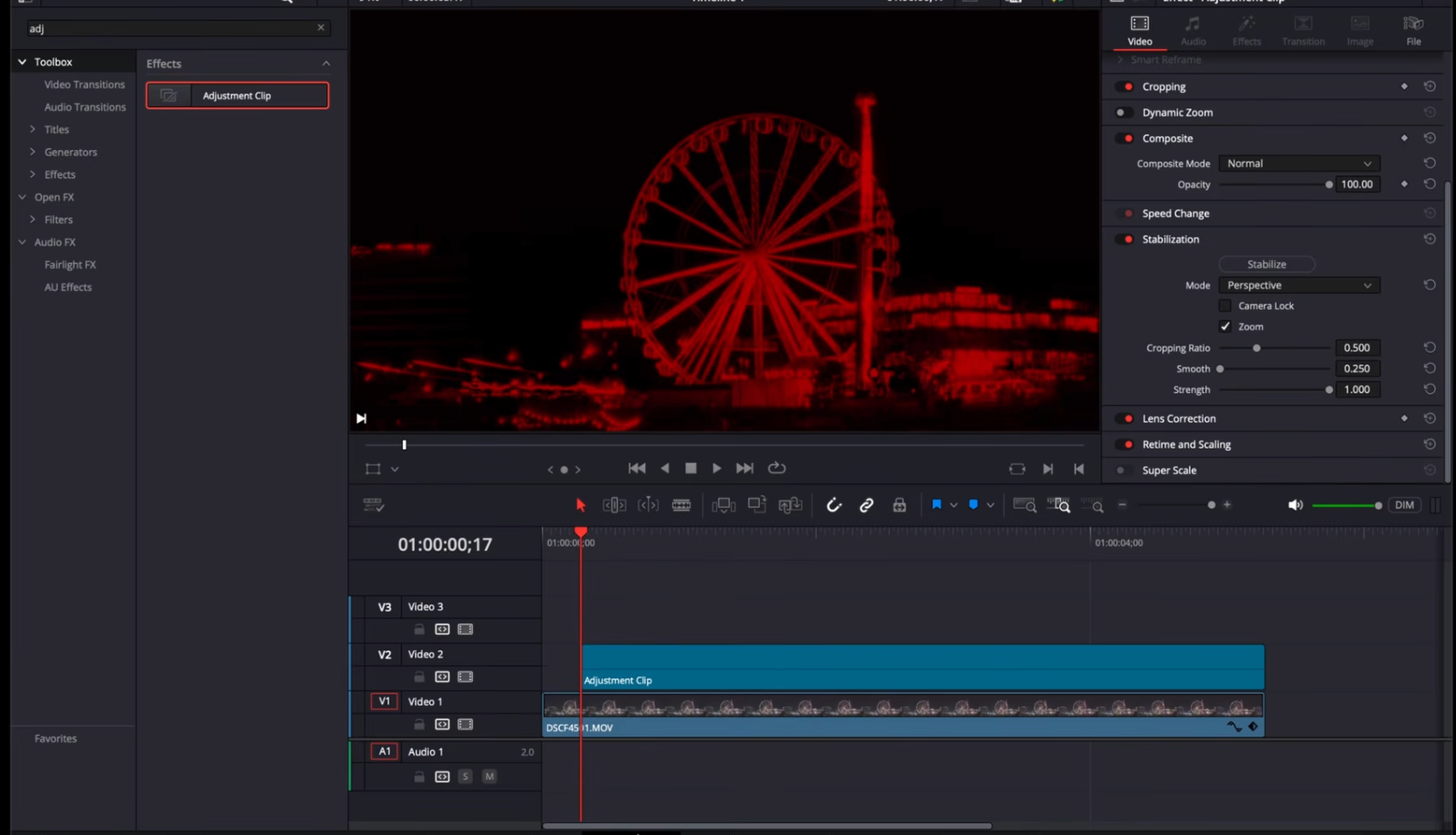
Here’s the workaround the tutorial demonstrates for the free version of Resolve:
- Add an adjustment clip. On the Edit page, place an adjustment clip on the track above your footage, covering the shots you want to treat.
- Isolate the red highlights. On the Color page, select the adjustment clip and use the curves to isolate the red channel and the brightest parts of the image, so only the highlights carry through.
- Set the composite mode to Screen. Back on the Edit page, in the Inspector, change the adjustment clip’s composite mode to Screen. The isolated red highlights now brighten the image underneath rather than replacing it.
- Add a Gaussian blur. Apply a Gaussian blur to the adjustment clip so the red spreads softly around the highlights, which creates the halo.
- Dial it back. Lower the adjustment clip’s opacity or blur amount until the effect reads as subtle. Halation looks most convincing when viewers barely notice it.
Competitive Context
Third-party plugins like Dehancer offer dedicated halation tools with more realistic falloff and per-stock presets, covered in Film Look on Digital: Dehancer for DaVinci Resolve. ARRI has also added halation to its own film emulation, covered in ARRI Film Lab 1.5 Adds New Film Formats and Halation.
Those tools cost money. The free method gets you a convincing result with nothing but the base version of Resolve, though it takes more setup per project and offers less control over how the glow falls off.
The Signal in the Noise
For filmmakers on the free version of Resolve, this is one of the most useful film-look techniques to learn. It takes a few minutes to build and works on any footage.
The bigger lesson is restraint. Halation works best on shots with real highlights, like practical lights, windows, sun flares and reflections. Heavy halation on flat, evenly lit footage tends to look like a filter rather than film.
If you upgrade to Studio later, the native halation tools and Film Look Creator are faster. Until then, this method covers most needs.
What’s your go-to trick for making digital footage feel like film? Share it in the comments.
Specs & Pricing
- DaVinci Resolve (free): $0; supports the adjustment clip method
- DaVinci Resolve Studio: $295; includes built-in halation tools and Film Look Creator
- Current Studio sale: $236 through November 20, per Blackmagic