Adobe Adds Build a Story and Assemble Short Video Beta Workspaces to Firefly
Adobe’s Firefly beta workspaces turn a prompt into scenes and shot cards, then let creators arrange, regenerate and compare clips on a single track.

Adobe has added two beta workspaces to Firefly that cover the path from a video idea to an assembled short.
Build a story turns a prompt into planned scenes and shots. Assemble short video gives generated or imported clips a single-track workspace for arranging and regenerating.
Both were announced at Adobe MAX on November 10, and Adobe describes both as beta features available for testing and feedback.
How Build a Story Works
Build a story sits under Video in the Firefly menu and runs through the Firefly AI Assistant. Users type an idea, optionally add reference images for characters, locations, objects or theme, and choose a total duration.
The assistant then proposes a look, a sound approach, the number of scenes and shots, and the characters, locations and objects involved. Adobe’s examples include a desaturated, grain-heavy live-action look and a silent sound approach told in pure action.
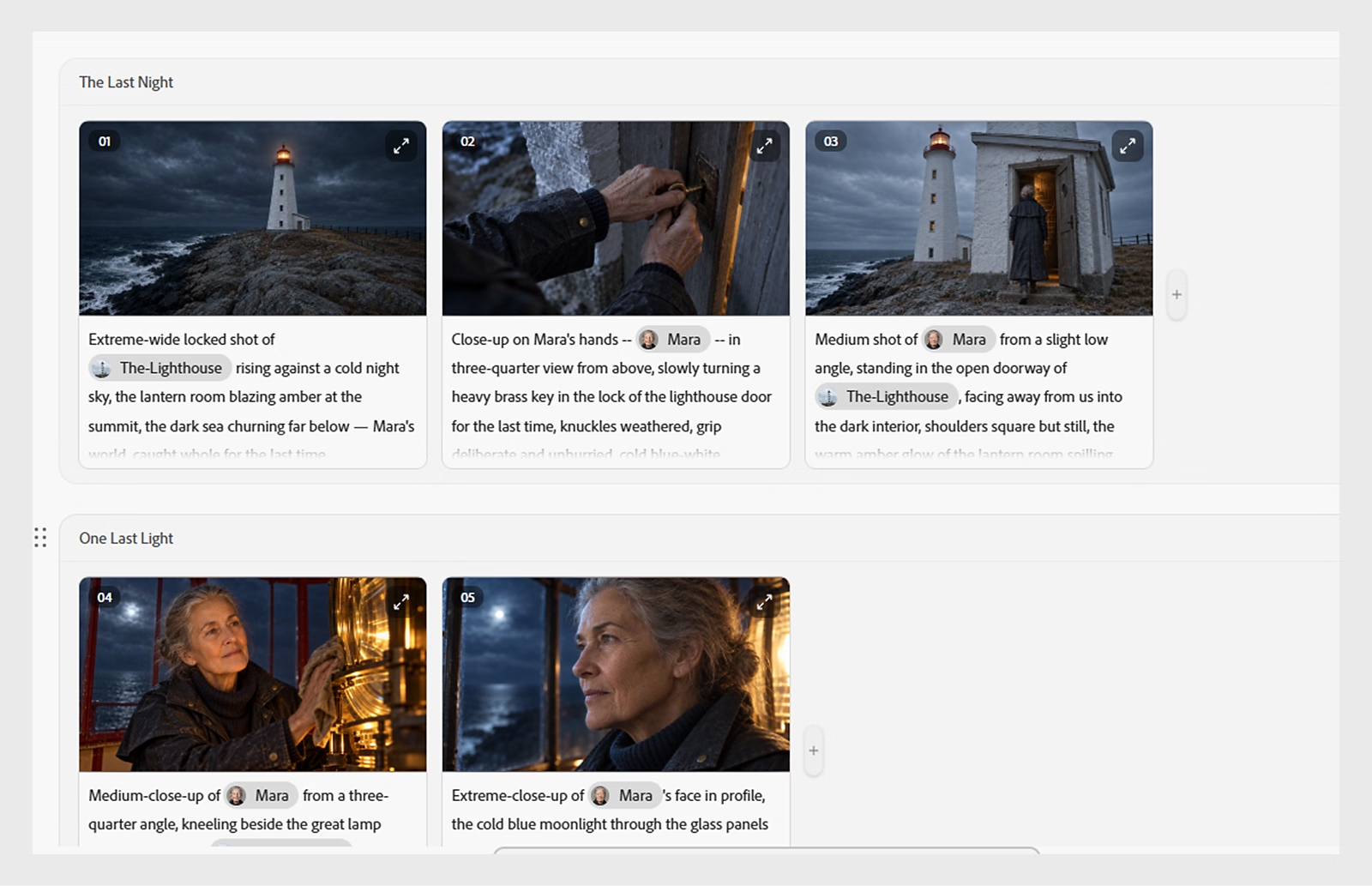
Once the proposal is accepted, the assistant saves the characters, locations and objects as elements for consistency. It wires them into the relevant shots, writes a beat description for each shot and generates a first frame for each one.
Shots appear as cards grouped by scene, each with its first frame. Frames and beat descriptions can be refined in the Shot editor or through the assistant.
Clips are generated one card at a time or with Generate all, and the assistant can also be asked to animate the shots. The finished sequence can be previewed, downloaded or opened in Timeline.
Limits to Know Before Starting
Resolution and aspect ratio can’t be changed for any shot after frames are generated.
Build a story works on desktop in Chrome and Edge only, and mobile web and viewports smaller than 1080 by 700 are not supported.
Clips can’t be uploaded from a computer into a card. They can only be added from Adobe cloud storage under Generation history.
Adobe’s help page doesn’t list credit costs or the models behind the generation.
What Assemble Short Video Does
Assemble short video is a single-track workspace for arranging, adjusting and regenerating clips. It’s meant for quick edits and for previewing takes before downloading or moving to more advanced editing.
Users can reorder clips, trim or split them, adjust the volume of individual clips and change the aspect ratio. It can also detect cuts and automatically split clips at those points.
Selecting a clip and typing a prompt regenerates it, with an optional reference image. A credit cost indicator shows in the prompt bar before generating.
The original clip and each regenerated version appear as takes beside the preview, and any take can be chosen for the sequence.
The workspace opens from Video > Assemble short video in Firefly, from the Edit video button after a supported Quick Action workflow, or from Video assembler (beta) after generating a video with an omni model in the AI Assistant.
Finished sequences can be downloaded or opened in Timeline for multi-track editing.
The Assistant Behind It
Build a story runs on the same Creative Agent that Adobe expanded at MAX. That update adds Plan Mode, which lets users review, edit and approve the agent’s plan before it starts, and a Model Selector.
The agent also gains saved preferences for formats, colors, brand guidelines, characters and products.
Availability
Adobe’s help pages say neither workspace is available to Creative Cloud for Teams or Creative Cloud for Enterprise users.
Adobe’s release makes no video-specific pricing or credit statements and points to the general Firefly pricing page.
Competitive Context
Shot planning inside the generator is becoming standard in AI video tools.
Higgsfield’s version centers on lens and genre controls, covered in the Cinema Studio 4.0 guide.
Google’s Flow added artist-built tools for planning and multi-angle coverage, covered in Google Flow’s five artist tools.
Storyboard-first workflows that feed keyframes into video models are covered in Flux 3 image storyboards for AI video.
The Signal in the Noise
Build a story is a planning layer. Its main job is keeping characters, locations and objects consistent across shots, which is the problem BRC covered in how to keep characters consistent in AI video.
The resolution lock matters for how it’s used. The aspect ratio and resolution have to be decided before frames are generated, because they can’t be changed afterward.
The two workspaces differ on inputs. Build a story takes clips only from Adobe’s Generation history, while Assemble short video accepts generated or imported clips.
Both hand off to Timeline, which Adobe also labels beta, and that’s where multi-track editing happens.
Adobe hasn’t said which models generate the frames and clips, and the credit cost of a full Generate all run isn’t published.