How to Use MAGI-2 for Multi-Shot AI Video: Timed Cuts, References and Start Frames
A guide to MAGI-2 on Higgsfield: choosing References or Frames, labeling inputs, writing timed cuts, and what a 4 to 30-second 1080p clip costs.

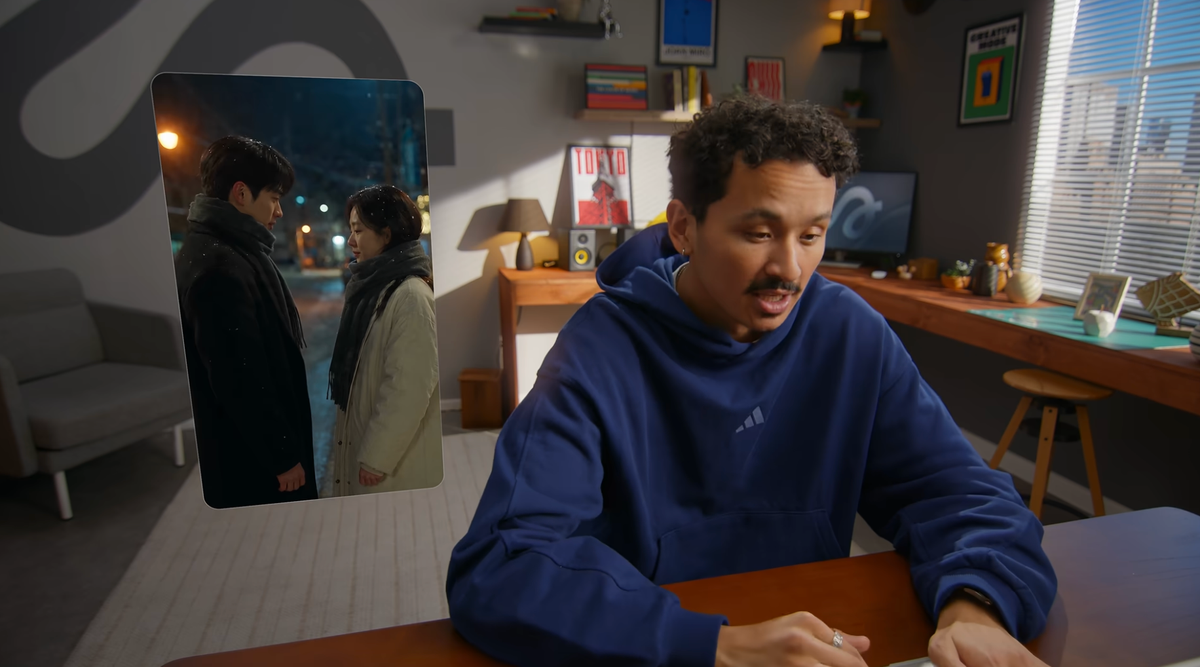
MAGI-2 is Sand.ai's video model, available on Higgsfield. It generates 4 to 30-second clips with sound, guided by references or a start frame. This is how to set up a multi-shot clip, based on Higgsfield's guide for the model.
Pick a Mode
In Higgsfield's web app, open Video, then Create Video, and select MAGI-2 in the model list. The app offers two modes.
References guides the video with source material for a character, location, voice or music. A generation takes up to 10 images, 5 videos and 5 audio files.
Frames uses a start frame to animate an existing image. Adding an end frame creates a transition between two frames, and the end frame is optional.
Higgsfield says images define how a character looks, video shows how something should move, and audio sets the sound. Its guide says to use only material you own or have permission to use.
Write the Prompt
Refer to each input by its label, such as Image 1, Video 1 or Audio 1. Higgsfield says to limit each clip to one or two actions and a single camera movement.
In References, describe the character, location and action. In Frames, describe the scene already shown in the start image and the intended movement.
If you add an end frame, describe what happens between the two frames. A prompt for a different scene than the start image can change the image substantially.
Write the Cuts Into the Prompt
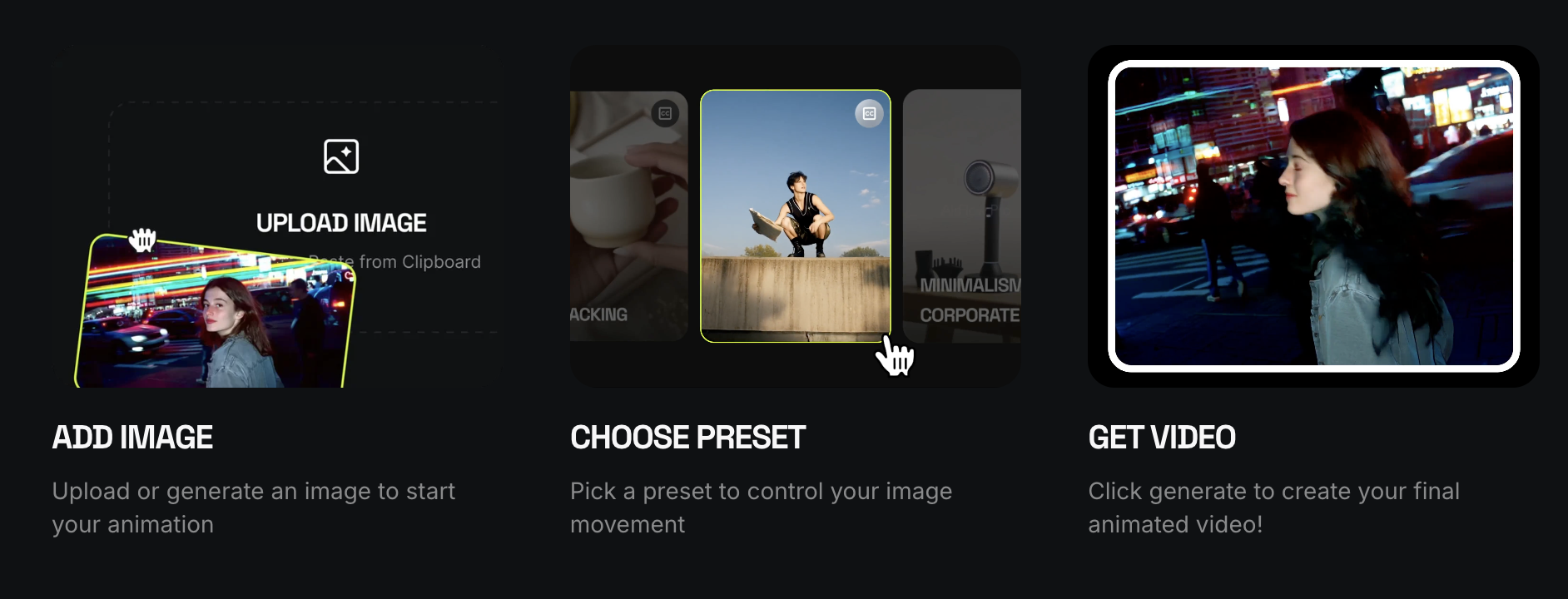
Higgsfield says framing, camera movement, timing and cuts between shots can all be described in the prompt. Its guide includes a long sample prompt with timestamped shots, hard cuts and per-shot camera settings.
Maverick Frame reports there is no formal timeline syntax. Plain timestamps such as "0–3 seconds:" go into the prompt. It says cuts don't always land on an exact frame, so plan to trim in an editor.
Higgsfield's guide gives no separate written rules for cut count or timing.
Set Duration, Ratio and Sound
Duration runs from 4 to 30 seconds. Output is 1080p only, at 25 frames per second, in six aspect ratios: 16:9, 21:9, 4:3, 1:1, 3:4 and 9:16.
The Sound toggle is the speaker button at the bottom of the prompt box. Dialogue with lip sync, sound effects, ambient sound and music are generated with the video, and turning the toggle off gives a silent clip.
The Generate button shows the credit cost before generation starts. There is no 720p option, so Higgsfield says to shorten the clip to reduce cost.
Where It Can Go Wrong
Higgsfield lists a few known issues. A start frame can change more than expected if the prompt describes a different scene.
Transitions between a start and end frame can look abrupt when the setting, lighting or character differ. Characters or locations can drift from the references unless the references are clear and described in the prompt.
Clips with many competing actions are also a known problem.
Blender Previs in Higgsfield's Demo
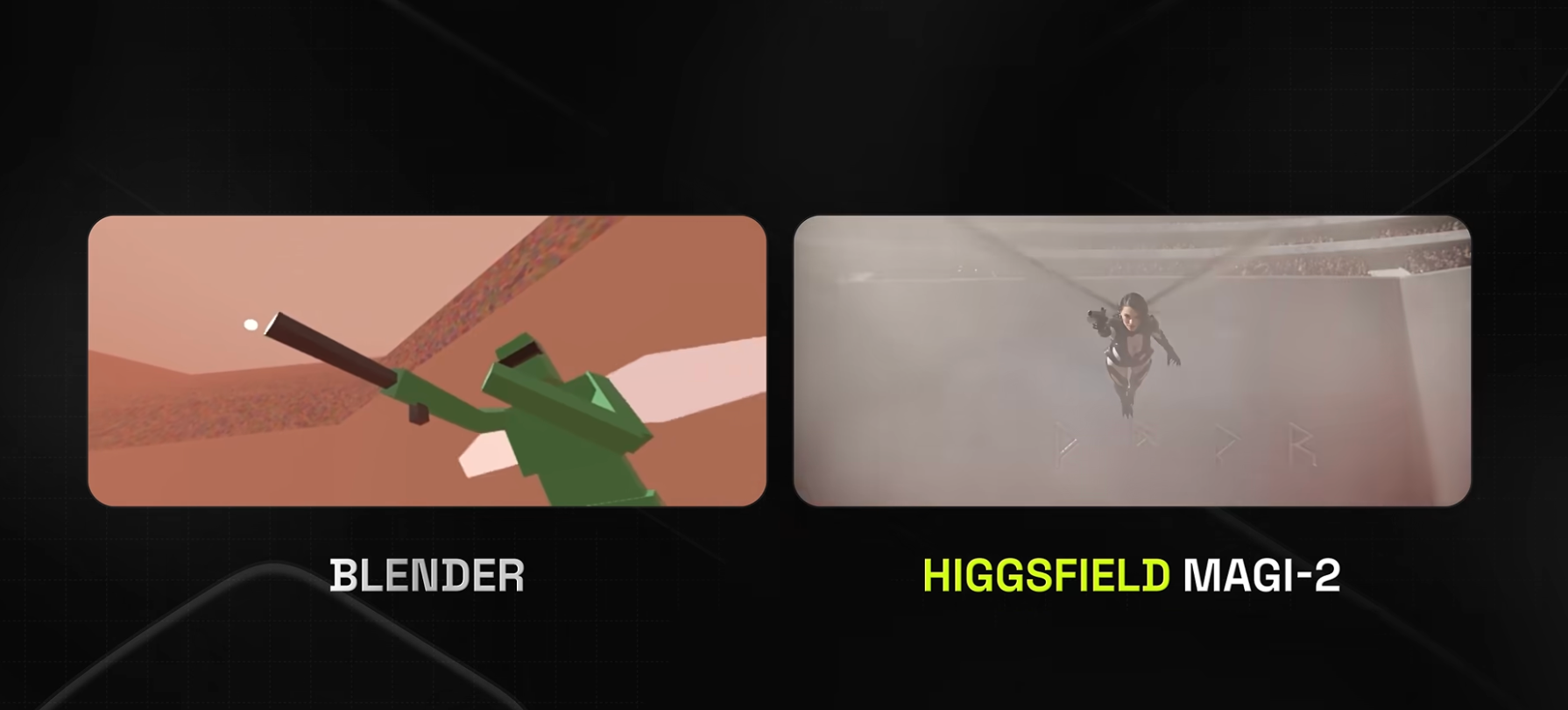
Higgsfield's X thread shows a previs workflow. The scene is blocked out with boxes in Blender, with the camera and cuts set.
Higgsfield says MAGI-2 turns that into a wet street at night with the same angles and moves. That fits the video reference input, which Higgsfield says shows how something should move. The results shown are Higgsfield's own demos.
Competitive Context
A separate explainer on MAGI-2 covers what it is, its inputs and where to use it.
A guide to multi-shot prompts covers the same technique for Seedance 2.5, Kling 3.0 and FLUX 3.
MiniMax H3 takes a stricter format. A guide to prompting H3 says every shot after the first needs a timestamp in MM:SS.mmm format.
fal's H3 Max also turns Blender previs into video, as covered in a report on H3 Max and Blender previs. The caveat there applies here too, since a generated shot can look good and still drift from the planned camera path.
Frames mode is the start and end frame technique covered in a guide to keyframes in AI video. It advises matching lighting, lens feel and character appearance across frames.
The Signal in the Noise
MAGI-2's controls are plain-language: a prompt, labeled references and timestamps, with no formal timeline syntax. Because Higgsfield's guide says little about cut timing, a few short test generations are the way to learn how it reads timestamps.
Cost scales with length at 2.5 credits per second in the web app. Testing at 4 to 10 seconds before committing to 30 costs less.
The Blender-to-shot workflow is so far a Higgsfield demo.
MAGI-2 is available now in Higgsfield's web app and API.
Specs & Pricing
- Model: MAGI-2 (Sand.ai), in Higgsfield's web app and API
- Length: 4 to 30 seconds
- Resolution: 1080p only, 25 fps
- Aspect ratios: 16:9, 21:9, 4:3, 1:1, 3:4, 9:16
- References: up to 10 images, 5 videos and 5 audio files
- Frames: start frame with optional end frame
- Audio: generated with the video, with an on/off toggle
- API price: $0.08 per second ($0.80 for 10 seconds, $1.20 for 15, $2.40 for 30)
- Web app: 2.5 credits per second (25 credits for 10 seconds, 37.5 for 15, 75 for 30)
- Web app cost on the Plus plan ($59/month for 1,200 credits), per Higgsfield's estimates: about $1.23, $1.84 and $3.69
- Promotion: Higgsfield's X post lists a Black Friday sale of up to 70% off
Resources & Reads
- MAGI-2 on Higgsfield: guide (Higgsfield)
- MAGI-2 premieres on Higgsfield: FAQ (Higgsfield)
- Higgsfield's X thread on MAGI-2 workflows, including Blender previs
- This Is The Cheapest AI Video Model I've Ever Tested ($0.08/Second) (Higgsfield AI on YouTube)
- MAGI-2 by Sand.ai: Price, Limits and Open Weights (Maverick Frame)
- What Is MAGI-2? The AI Video Model That Makes 30-Second Clips With Sound