How to Write Multi-Shot Prompts for AI Video
AI video models can now generate several shots in one clip. Here’s how to write multi-shot prompts for Seedance 2.5, Kling 3.0, and FLUX 3, with a template and tips.

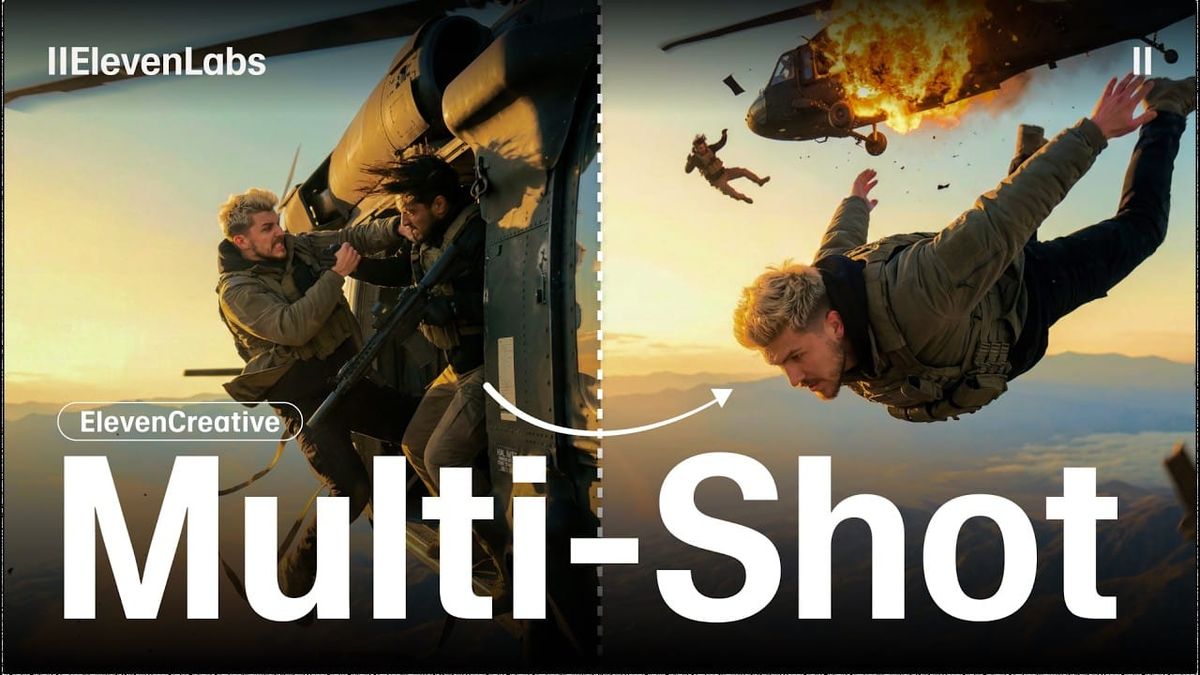
AI video models can now generate several shots in a single clip, complete with cuts, new camera angles, and changes in framing. Instead of stitching together separate generations, you can describe a short sequence and get it back as one continuous piece.
Getting good results depends on how you write the prompt. Here’s how multi-shot prompting works, which models support it, and a template you can adapt for your own scenes.
What Is Multi-Shot Prompting?
A standard AI video prompt describes one shot: a subject, an action, and a camera move. A multi-shot prompt describes a sequence, breaking a clip into separate shots with their own framing and timing.
Some models read these as timed blocks, while others let you define each shot in its own field. Either way, the model handles the cuts within a single generation, which helps keep characters, lighting, and setting consistent from shot to shot.
Which Models Support It?
Seedance 2.5 generates up to 30 seconds in one pass and accepts prompts written as timed blocks that set shot size, camera, and transitions. According to ComfyUI’s announcement, it follows that schedule, including hard cuts on the beat. For setup, see How to Get Started With Seedance 2.5 on Dreamina, Runway, and fal.
Kling 3.0 offers two options within its 3–15 second range. Multi-Shot takes one description of the whole sequence and proposes the shots. Custom Multi-Shot lets you define each shot’s subject, action, framing, and duration separately.
FLUX 3 supports multiple scenes and camera angles within a single clip of up to 20 seconds, along with native audio and dialogue.
Start With a Shot List
The easiest way to write a multi-shot prompt is to start the way a director would, with a shot list. Decide how many shots you need, what happens in each, and how long each one should last.
Keep it short. Two to four shots usually work better than six or seven, since every cut is another chance for continuity to slip.
A Simple Template
Write a short description of the scene first, then break it into timed shots. Here’s a basic structure:
Scene: A woman in a red raincoat waits at a neon-lit bus stop at night, rain falling.
[0–4s] Wide shot, static camera. She stands alone under the shelter as a bus passes in the background.
[4–8s] Medium shot, slow push-in. She checks her phone, then looks up the street.
[8–12s] Close-up on her face, shallow depth of field. Headlights sweep across her as she smiles.
Each shot has one action and one camera instruction. The scene description at the top carries the details that stay the same, like the character, setting, and lighting.
Tips for Better Multi-Shot Results
One action per shot. Packing several actions into one shot makes it harder for the model to time the cut correctly.
One camera move per shot. Avoid conflicting directions like “dolly in while orbiting left.” For camera terms that work well, see Camera Movement Prompts for AI Filmmaking.
Describe the character once. Put appearance details in the scene description and refer back to the character simply in each shot. Repeating or rewording the description invites the model to change it.
Use references for consistency. Character reference images help keep faces and costumes stable across cuts. For more, see How to Keep Characters Consistent in AI Video.
Don’t fill the full length by default. A 10-second sequence with three clear shots will often look better than a 30-second clip with too much happening.
Expect timing to be approximate. Runway’s guidance for Seedance 2.5 notes that timestamps guide pacing but aren’t frame-accurate. Plan to trim and fine-tune cuts in your editor.
Dialogue in Multi-Shot Prompts
For shots with dialogue, name the speaker, write the exact line in quotes, and describe the delivery. For example: [4–8s] Medium close-up. She says quietly, “It’s late again.”
Keep dialogue to one or two lines per shot. For background on how AI video models generate speech and sound, see What Is Native Audio in AI Video?.
When to Use Single Shots Instead
Multi-shot prompting works best for short sequences where shot order and pacing matter, like a reveal, a reaction, or a simple exchange. For complex scenes or precise editing, generating shots separately and cutting them yourself still gives you more control.
Many filmmakers combine both: multi-shot for quick sequences and coverage, single-shot generation for hero shots that need to be exact.
Competitive Context
Multi-shot generation is quickly becoming standard among top video models. Seedance 2.5’s 30-second length gives it the most room for longer sequences, while Kling 3.0’s Custom Multi-Shot offers the most direct shot-by-shot control.
Other tools take different approaches to longer sequences. Research projects like Microsoft’s Code Video Model plan shots as code first, covered in This AI Video Model Plans Every Shot in Code First, Like Previs.
The Signal in the Noise
The best multi-shot prompts read like a short shot list: a clear scene description followed by a few timed shots, each with one action and one camera move. That structure gives the model less to guess and gives you a sequence closer to what you planned.
Start with two or three shots, review the result at full speed, and change one thing at a time between attempts.
The Details
- Seedance 2.5: Up to 30 seconds, timed shot blocks, hard cuts
- Kling 3.0: 3–15 seconds, Multi-Shot and Custom Multi-Shot
- FLUX 3: Up to 20 seconds, multiple scenes and camera angles
- Template: Scene description + timed shots (one action, one camera move each)
- Best length: Two to four shots
- Timing: Approximate; fine-tune in your editor
What’s your go-to structure for multi-shot prompts? Share an example in the comments.