A Beginner's Guide to Higgsfield Genjutsu
A step-by-step guide to Higgsfield Genjutsu's Motion Transfer and Object Swap, from uploading footage to comparing your final result.

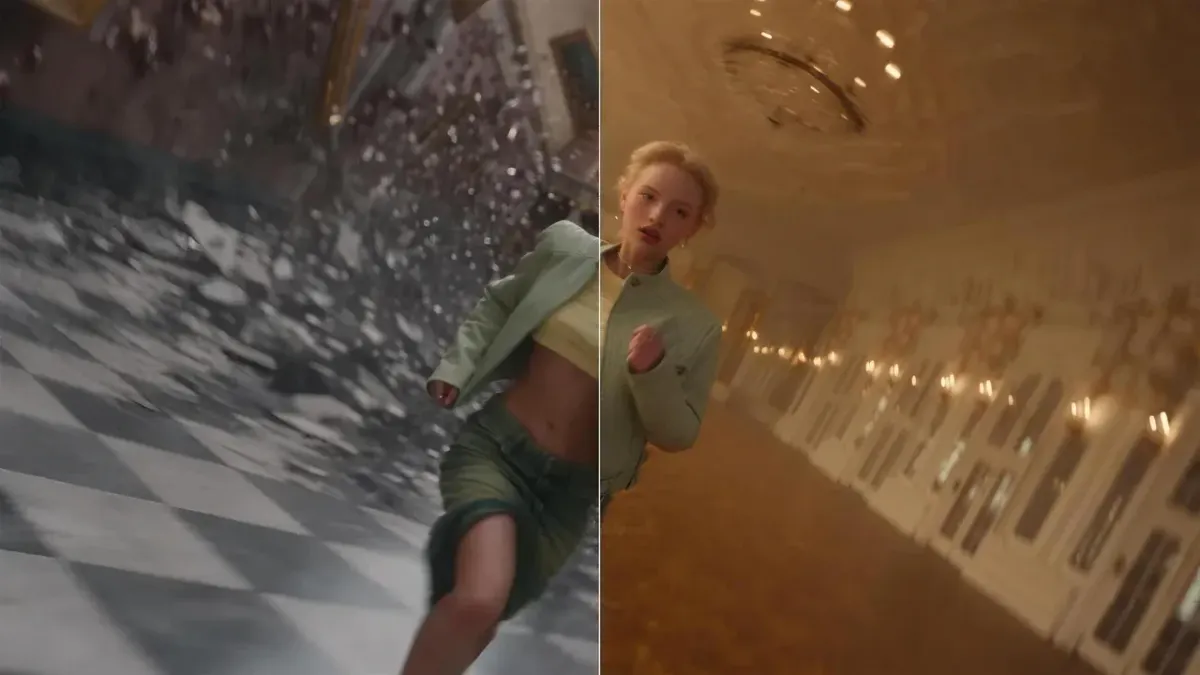
Higgsfield Genjutsu rebuilds parts of a video you've already shot, recasting a character, swapping a location, or replacing a single object, without booking a reshoot. If you haven't used it yet, the actual workflow is simpler than the tool's ambitious feature list suggests, and it comes down to five steps.
Featured Video
For a full hands-on walkthrough of the workflow described above, this beginner-focused tutorial covers the same five steps in practice, from uploading a source clip through generating and comparing the final result.
Step 1: Pick a Mode
Genjutsu opens with a choice between two distinct features, and picking the right one matters more than anything else you'll do. Motion Transfer keeps a clip's motion, camera work, and timing intact while rebuilding everything else, cast, location, visual style, from your reference images. Object Swap does the opposite: it changes one specific element you describe while leaving the rest of the original footage untouched.
If you're recasting an entire scene or moving it to a completely different setting, use Motion Transfer. If you just need to change one thing, an outfit, a product, a background detail, Object Swap is the faster, more targeted tool.
Step 2: Upload Your Source Video
Add the footage you want to work from. Genjutsu accepts clips between 3 and 30 seconds long, and that source video is what defines the performance, timing, camera movement, and cuts that carry through to your final result. A badly blocked or poorly shot original clip won't be rescued by Genjutsu, the tool preserves what's there, it doesn't fix it.
Step 3: Add Reference Images
Upload up to 30 to 40 images (Higgsfield's own documentation gives slightly different figures depending on the page, so check the current generator for the exact cap) defining whatever you want Genjutsu to build from: a character's face, a specific wardrobe, a product, or a location. When multiple elements need assigning, reference each image by number in your description, "replace the driver with Image 2, the location with Image 4", so Genjutsu knows exactly what maps to what.
Step 4: Choose a Preset or Write a Short Description
Genjutsu ships with ready-made presets for common transformations, and Higgsfield's own guidance is that a full, detailed prompt usually isn't necessary either way. A short, clear description of the change you want is typically enough, especially when your reference images are already doing most of the visual work.
Step 5: Generate and Review
Each generation displays its credit cost before you confirm, so there's no surprise billing mid-project. Once it renders, Genjutsu provides a side-by-side comparison tool, a draggable handle lets you compare the original and the new version directly, useful for confirming the motion and cuts actually stayed in sync while everything else changed.
Competitive Context
Genjutsu isn't the only tool doing video-to-video transformation. Runway's Aleph works similar territory, editing existing footage rather than generating from scratch, and both tools are part of a broader shift toward treating AI video as an editing medium instead of a pure generation one. Genjutsu's specific differentiator is scope: Motion Transfer treats the entire shot, camera included, as material to preserve or rebuild, rather than mapping movement onto a single new subject and stopping there.
The Signal in the Noise
The real skill in using Genjutsu well isn't the five-step workflow, it's picking source footage worth reusing in the first place. A single well-blocked take with clean camera movement can become a dozen finished variations through Motion Transfer or Object Swap, but only if the original performance and cinematography were solid to begin with. Think of Genjutsu less as a shortcut around production and more as a multiplier on production you've already done well.
Would having a tool like this change how you shoot in the first place, deliberately capturing one strong take with reuse in mind, rather than treating each shoot as a single-use asset?
Specs & Pricing
- Modes: Motion Transfer (rebuilds scene, preserves motion/camera/timing) and Object Swap (changes one element, preserves the rest)
- Source video length: 3–30 seconds
- Reference images: up to 30–40 per project (check the current generator for the exact limit)
- Output: up to 1080p resolution
- Pricing: runs through Higgsfield's standard credit system; individual plans have been reported in the roughly $19–$129/month range across Starter, Plus, and Ultra tiers, though third-party sources vary noticeably on exact figures. Check Higgsfield's own pricing page directly before subscribing.
- Rights: generated output is yours to publish across organic and paid channels, subject to Higgsfield's Terms of Use, get consent before recasting a real person's likeness