DaVinci Resolve Keeps Defaulting Your Titles to the Same Font. Here's the Fix.
DaVinci Resolve's fastest titling shortcut always defaults to the same font. Here's how to permanently change that default and speed up your edit.

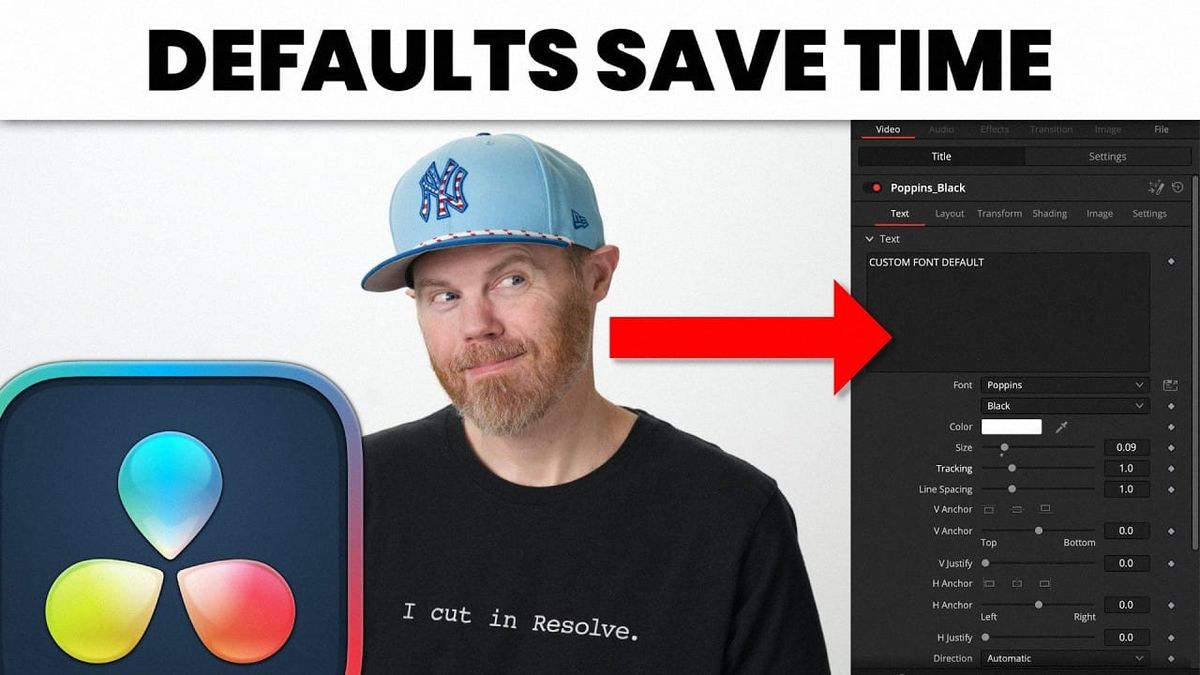
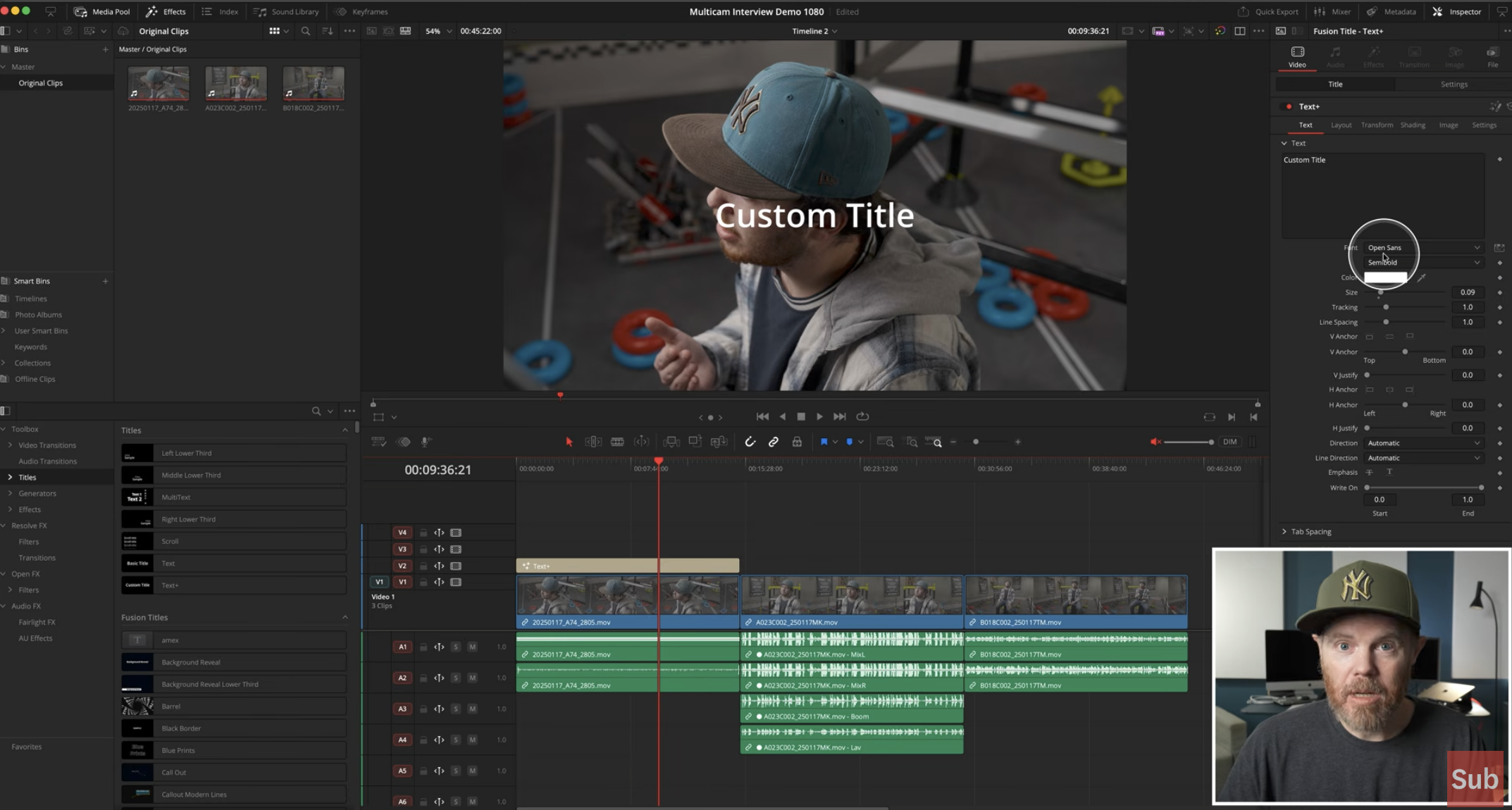
DaVinci Resolve's fastest way to add a title, placing the cursor above a clip, hitting X to mark it, then Shift+Spacebar to pull up the effects search, is a genuine speed hack once it's muscle memory.
It also comes with a persistent annoyance: every Text+ title created this way defaults to Open Sans SemiBold, Resolve's built-in cross-platform font, whether or not that's the font you actually want. A recent tutorial from Creative Video Tips (Chadwick) walks through the permanent fix.
Why This Default Exists in the First Place
Open Sans SemiBold isn't an arbitrary choice, it's set as the default specifically because it's guaranteed to be available across Linux, Mac, and Windows installations of Resolve. That cross-platform reliability matters for Blackmagic supporting a single default across every operating system Resolve runs on, but it means every fast-titling workflow starts from a font most editors immediately need to change, adding a manual font swap to what's supposed to be a fast, low-friction process.
The Fix: Saving a Custom Template
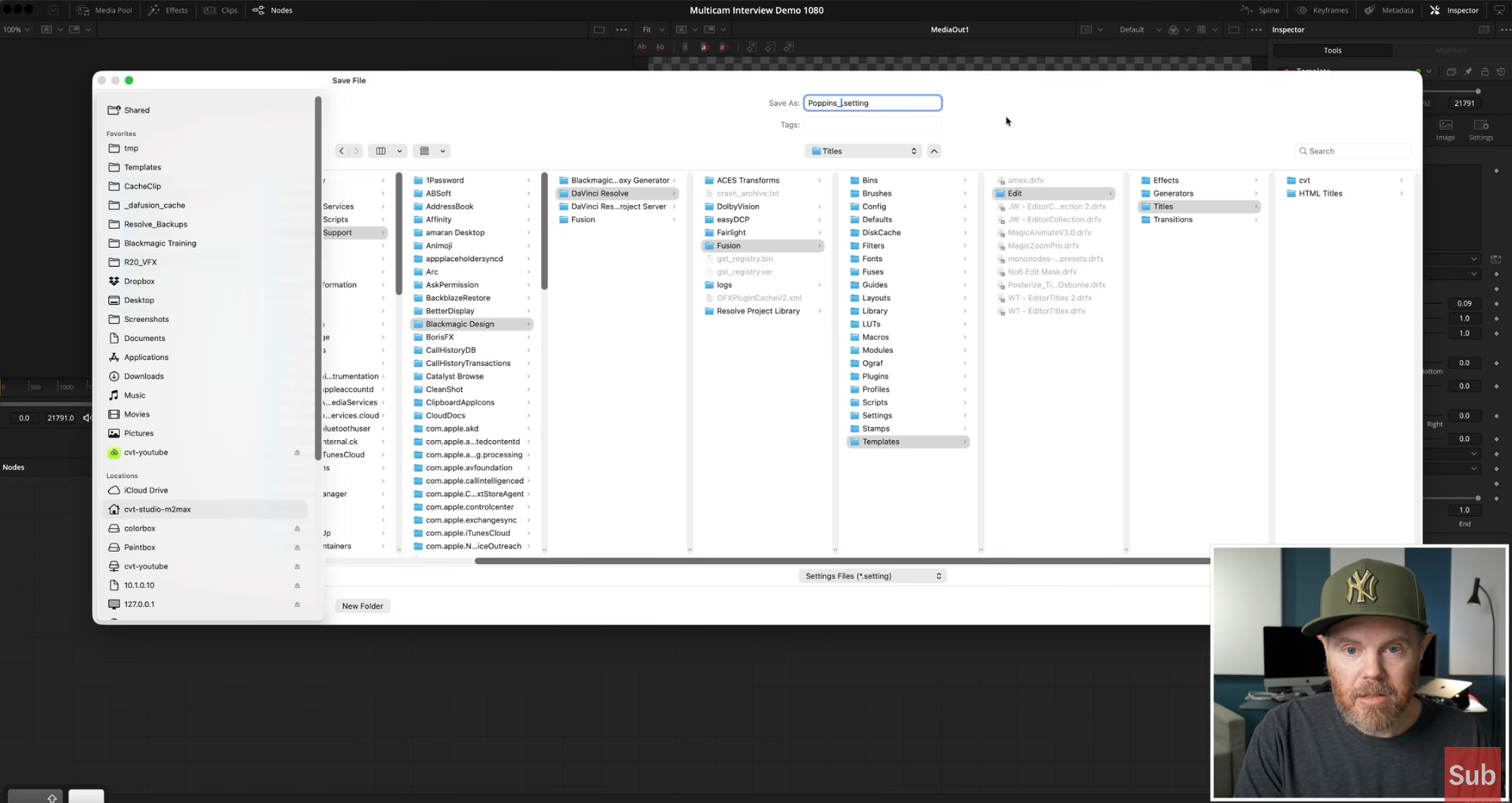
The actual solution isn't a settings menu toggle, it's creating and saving a modified title template that becomes Resolve's new default going forward. The workflow: build a Text+ title with your preferred font (Chadwick uses Poppins Black as his example), get the styling exactly how you want it, then right-click and save that modified node as a new template into Resolve's local edit templates directory, specifically the Templates/Edit/Titles folder inside Resolve's Fusion settings path.
Once that template is saved and Resolve is restarted, the fast X-then-Shift+Spacebar workflow pulls from your saved custom template instead of the Open Sans SemiBold default, permanently, until you change it again. That's the actual fix: not avoiding the fast method, but changing what the fast method actually defaults to.
Why This Is Worth Setting Up
For anyone doing regular text-heavy editing, lower thirds, quote cards, YouTube-style caption overlays, this closes a real, repeated friction point. Without the fix, every title insertion means: insert title, select the text layer, manually change the font, manually adjust size or weight, then finally place it. With the fix, the fast keyboard-driven insertion already produces on-brand, correctly-styled text from the first frame, no manual font correction step required on every single title throughout an edit.
That's a small change per instance, but it compounds fast across a project with dozens or hundreds of title insertions, exactly the kind of repetitive menu navigation this technique is built to eliminate.
Competitive Context
Adobe Premiere Pro handles this through Essential Graphics templates (mogrts), and Final Cut Pro has its own custom title style system, both solving a similar underlying problem: making a repeatedly-used text style available without rebuilding it from scratch each time.
Resolve's approach is distinct because it's built on Fusion's node system underneath, giving power users node-level customization options the other platforms' template systems don't offer, at the cost of a slightly less obvious setup process to get there.
The Signal in the Noise
This is a small, unglamorous fix, but it's exactly the kind of workflow optimization that matters more in aggregate than any single flashy technique. A five-minute one-time setup that removes a repeated font-correction step from every title insertion for the life of a project is a genuinely good trade, and it's a useful reminder that Resolve's defaults are worth actually customizing rather than working around indefinitely.
What's your current titling workflow in Resolve, template-based, built from scratch each time, or something else entirely? Curious what's actually working for you, drop it in the comments.