How to Use Gemini Omni 1.2 in Google Flow: Seven Uses for Longer Clips, Edits and Scene Extension
Google Flow now runs Gemini Omni 1.2 with 15-second scenes, edits on clips of 3 to 15 seconds, 10-second scene extension and a 360p draft mode.

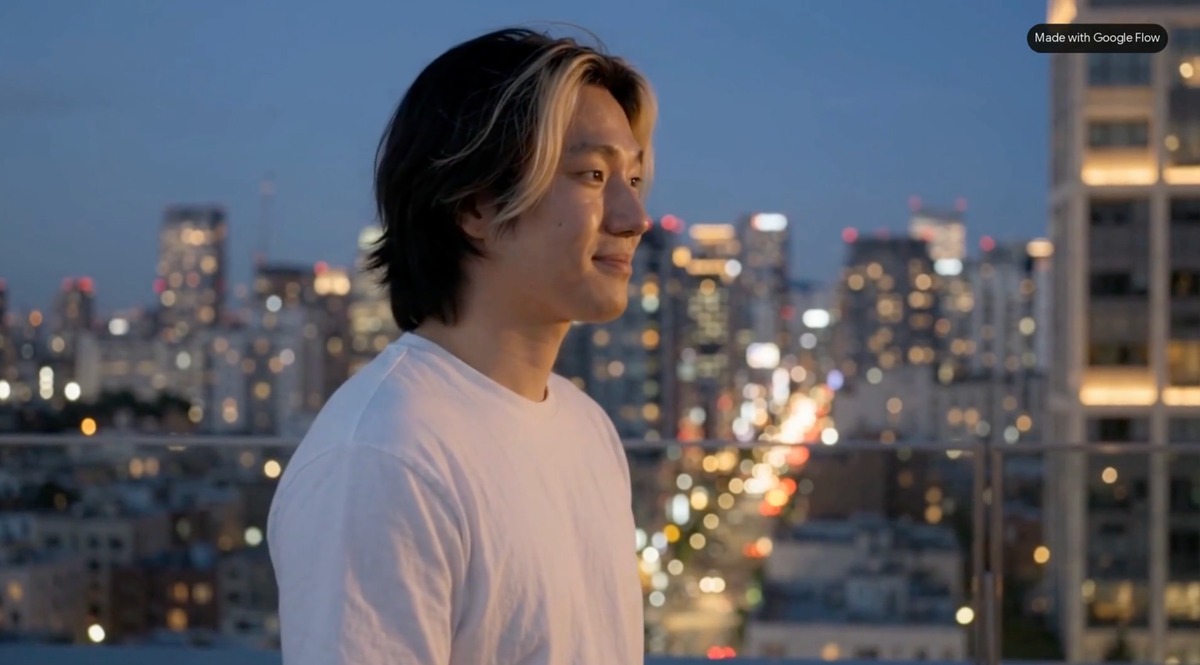
Google Flow now runs Gemini Omni 1.2, with scenes of up to 15 seconds, edits on clips of 3 to 15 seconds, and scene extension of up to 10 seconds per prompt.
Generations can be made in a 360p draft mode or at 720p. Edits work on footage generated in Flow or on footage you upload.
Google's announcement for Flow includes seven example uses, covering dialogue, character consistency, product shots, lighting changes, camera angles, extensions and fast concept work.
What Changed in Flow
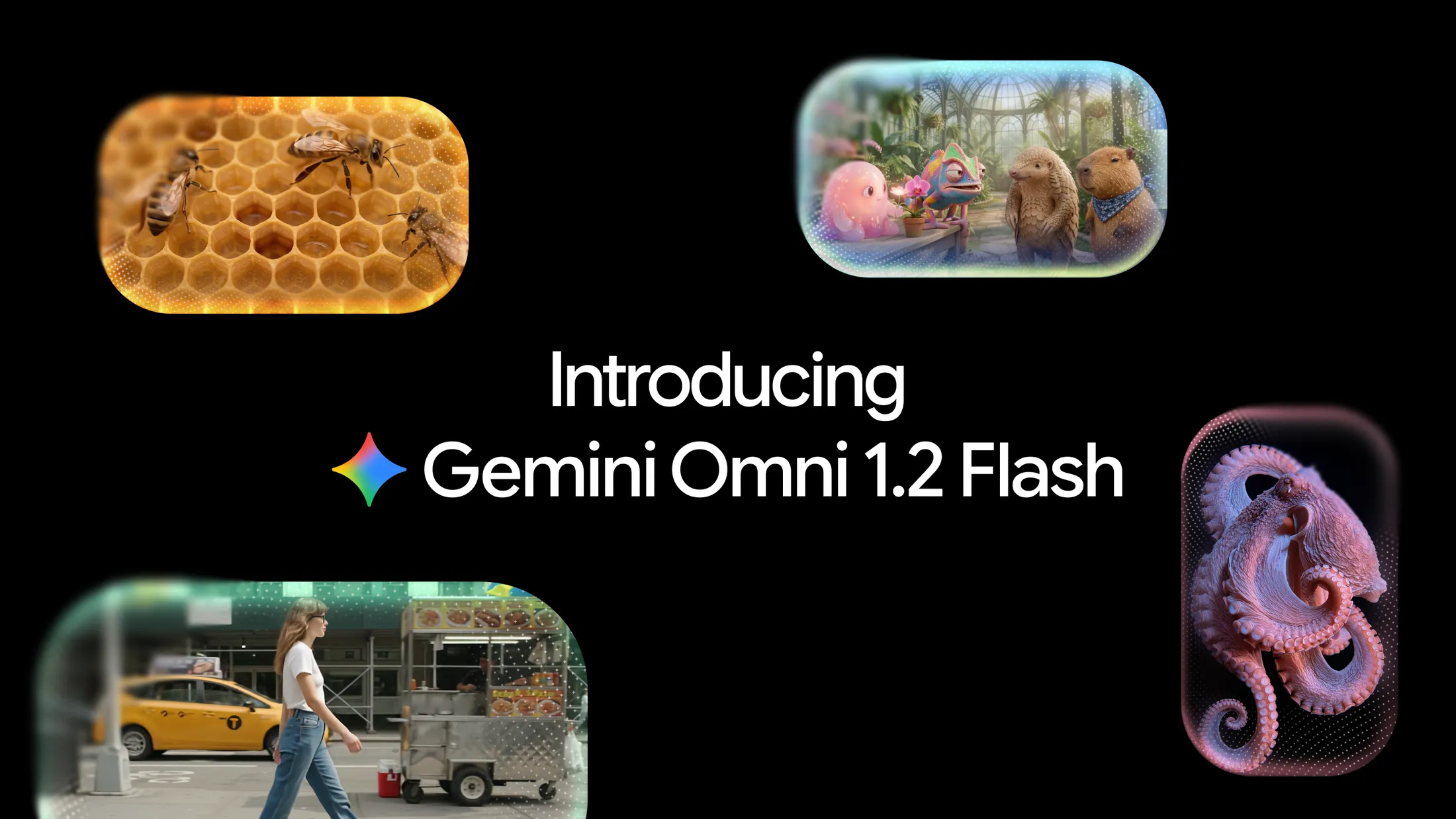
Scenes in Flow can now run up to 15 seconds, and drafts at 360p and finished clips at 720p both reach that length.
Editing covers clips between 3 and 15 seconds long. That range applies to generations made in Flow and to uploaded footage.
Extension continues a clip from the Flow timeline, up to 10 seconds per prompt. The clip can be any one on the timeline, and you can add image references to steer what comes next.
Seven Uses Google Highlights
Single-take dialogue is the first example. A longer generation window means a line of dialogue can play out in one shot rather than being stitched from shorter pieces.
Character consistency across scenes is the second. Reference images carry a character from one scene to the next.
Product showcases with a reference are the third. A product image can anchor the shot so the item stays recognizable.
Lighting and atmosphere edits are the fourth. An existing clip can be re-lit or changed in mood without regenerating it from scratch.
Camera angle changes are the fifth. A prompt can modify the angle on footage you already have.
Setting and action extensions are the sixth. A clip can continue with new surroundings or new movement.
Rapid concept prototyping is the seventh. Drafts at 360p let you test an idea before spending on a 720p render.
Why the Draft Mode Matters
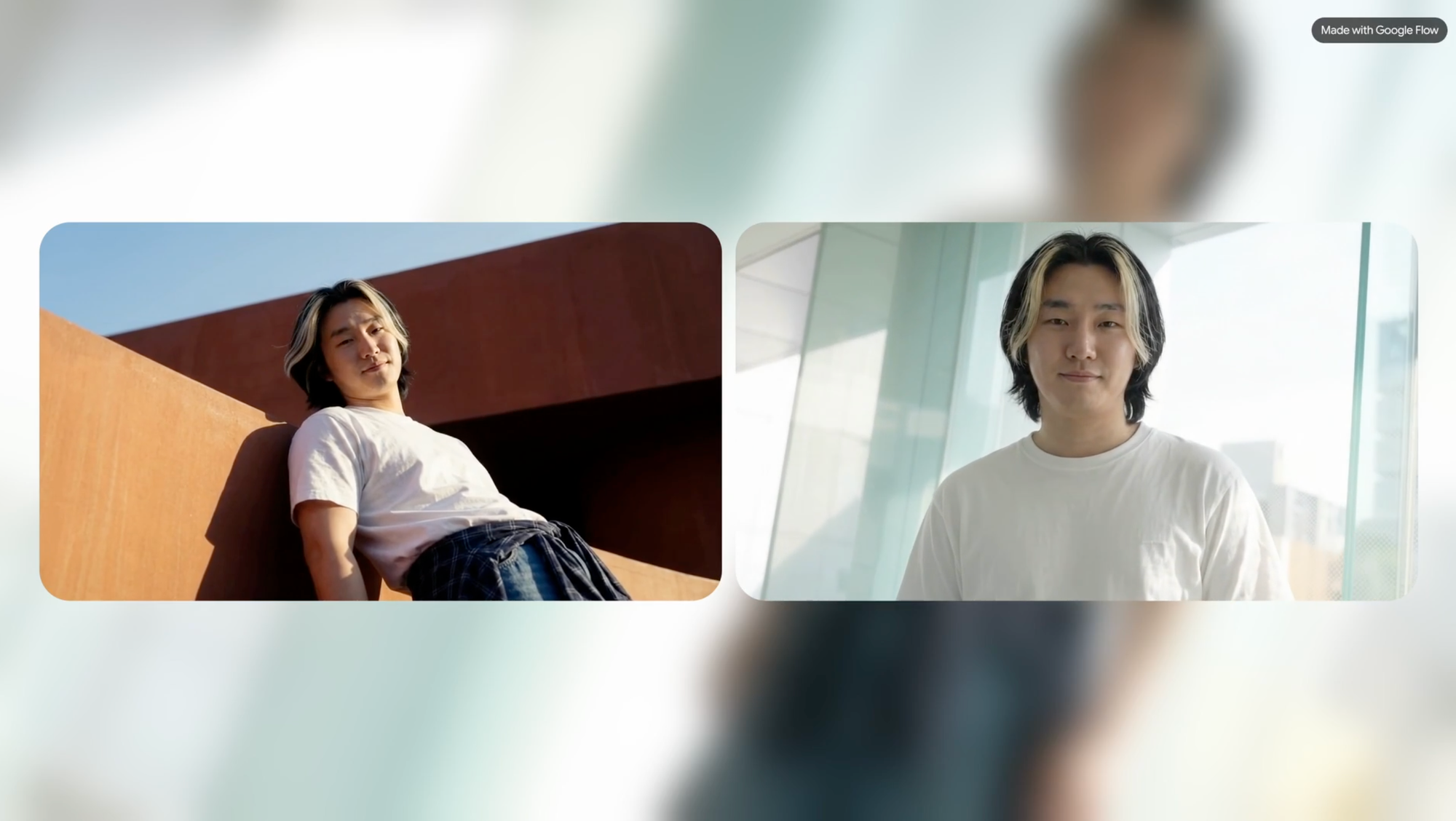
The 360p option is the practical detail for anyone planning a sequence. Drafts let you check framing, movement and timing across several 15-second scenes, then render only the ones you keep.
The same approach is already common elsewhere. Seedance 2.5 has a draft mode built around the same idea of cutting the cost of iteration.
Competitive Context
Gemini Omni 1.2 Flash launched on November 5, and BRC covered the model itself in Gemini Omni 1.2 Flash and 15-Second Video. This update brings those capabilities into Flow's timeline.
Editing existing footage with Omni was covered earlier in Gemini Omni Flash Video Editing. Scene extension arrived in Flow with Omni 1.1, which analyzed up to 10 seconds of an existing clip, and the 10-second extension limit per prompt stays the same here.
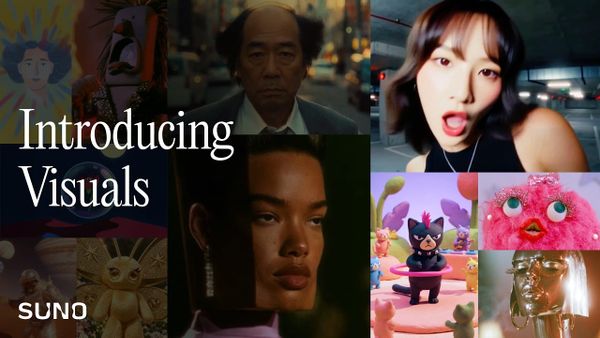
Other tools are working on the same length and cost questions. How to Use Seedance 2.5 Draft Mode to Cut Costs covers one approach, and Suno Visuals also builds around 15-second clips.
Keeping a character consistent across shots is still the hard part of multi-scene work. How to Keep Characters Consistent in AI Video walks through the reference-based methods.
The Signal in the Noise
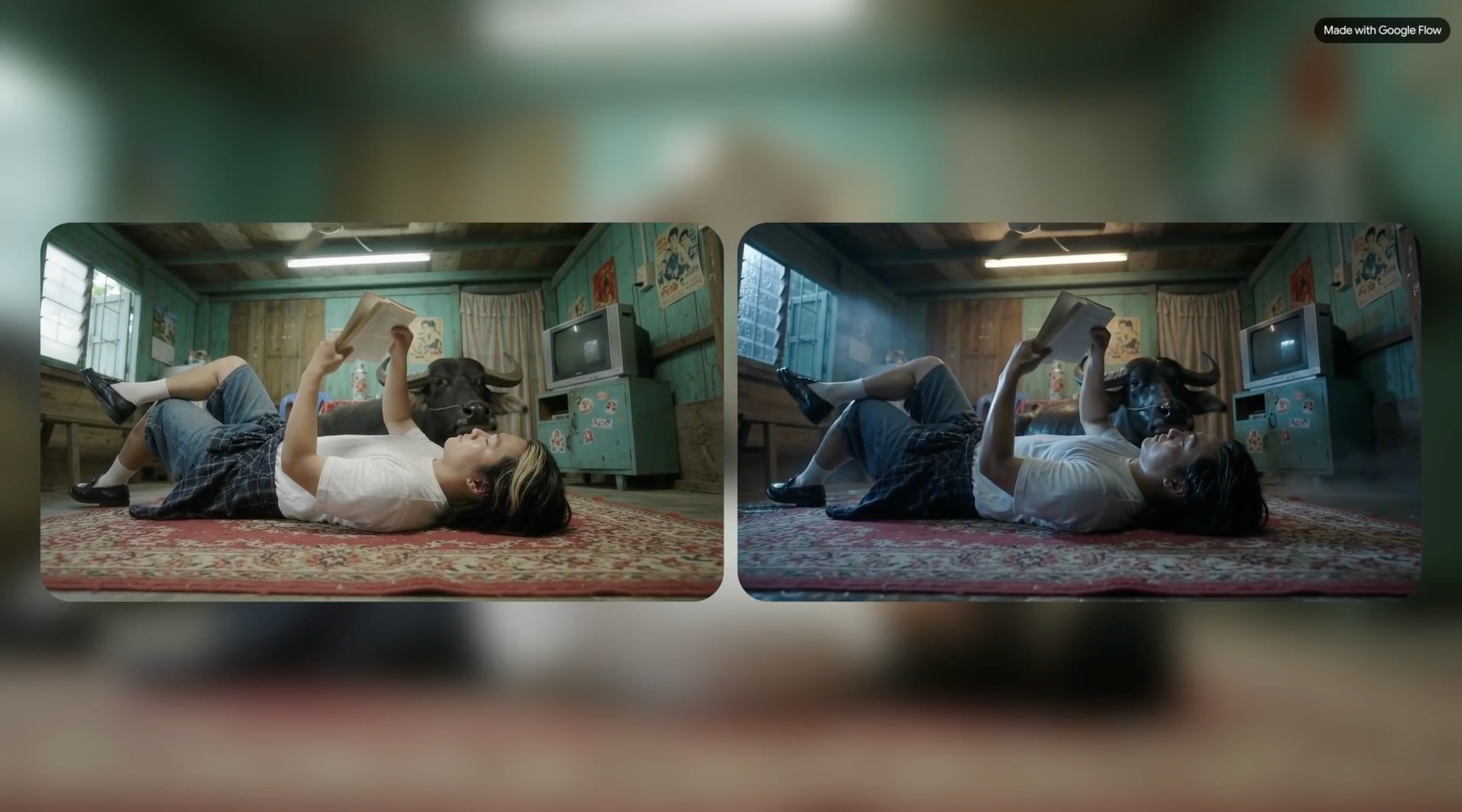
The seven examples are Google's own, and they show what the tools are designed to do rather than how reliably they do it. Single-take dialogue and cross-scene consistency are the two that need testing on real projects.
The workflow is the useful part. Draft at 360p, render the keepers at 720p, edit what you have, and extend from the timeline when a shot needs more time.
The 15-second limit still means longer scenes are built from several clips, and the 10-second extension limit applies to each prompt.