How to Connect Claude to DaVinci Resolve (No Coding Required)
DaVinci Resolve Studio 21.1 lets you connect Claude natively, no Python, no config files. Here's exactly how to set it up and what to ask it.

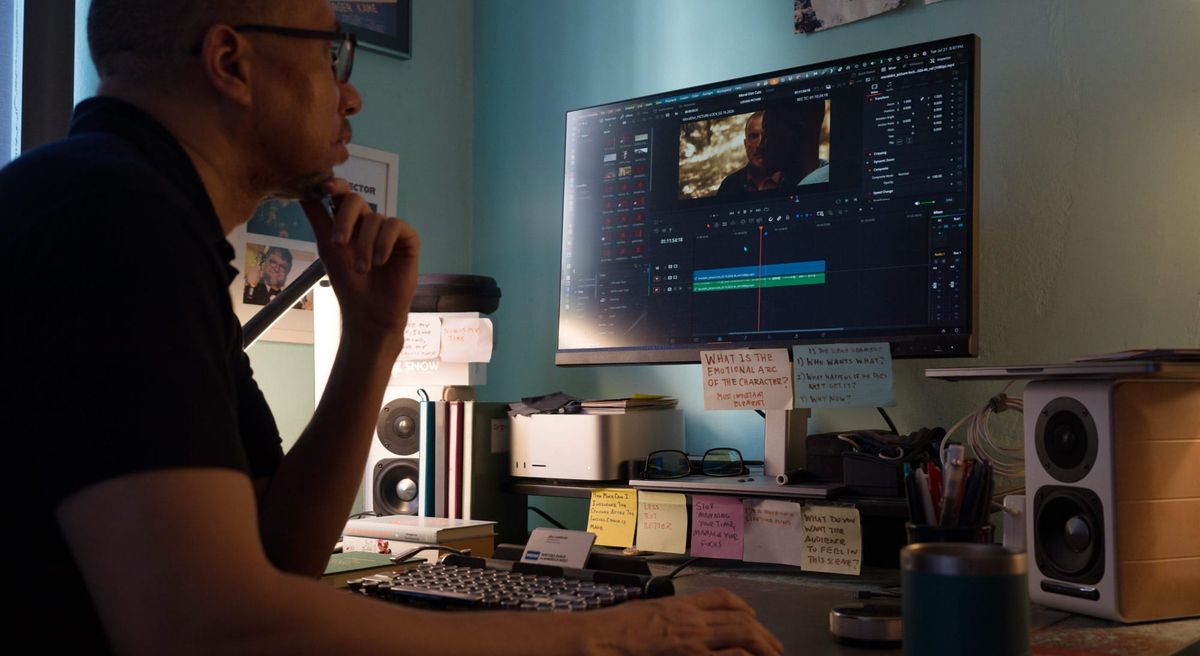
DaVinci Resolve Studio 21.1 added a native way to connect Claude directly to your editing project, no Python installation, no config files, no third-party server to set up. If you've seen tutorials showing a more complicated setup process, they're likely covering the older, community-built method that predates this release. Here's the actual current path.
What You Need Before Starting
This feature requires DaVinci Resolve Studio specifically, the paid license. The free version has scripting disabled entirely, which means the AI assistant integration isn't available on it regardless of version number. You'll also need a Claude account, either the desktop app, Claude Code, or an API-based setup, since Resolve's native integration supports Claude alongside ChatGPT Codex.
Setting It Up
Inside Resolve Studio 21.1, the connection point is a new menu: File > Setup AI Assistants. This opens the configuration for connecting an external AI assistant to Resolve's scripting API through Blackmagic's built-in MCP (Model Context Protocol) server, the same standard protocol Claude uses to connect to other external tools.
Once connected, quit and relaunch your Claude app if it was already running. You should see Resolve's tools become available inside a normal Claude conversation, functioning like any other connected tool Claude can call on mid-conversation. From there, make sure DaVinci Resolve is actually running with a project open before asking Claude to do anything, the assistant needs a live project to act on.
What You Can Actually Ask It To Do
Once connected, requests work as plain natural language inside your normal Claude conversation. Based on the scripting capabilities Resolve 21.1 exposes, useful categories include:
Project and timeline info: "What project do I have open?" "How many timelines are in this project?" "What clips are on video track 1?"
Media management: "Import all the video files from this folder into the Media Pool." "Create a new timeline called 'Rough Cut.'"
Editing actions: "Add a marker at this timestamp labeled 'fix audio here.'" "Run scene cut detection on the timeline." "Create a multicam clip from these camera angles and keep the cuts relaxed with occasional wide shots."
Color and audio: "Apply this LUT to the first node." "Normalize the audio levels across this timeline." "Enable voice isolation on the dialogue track."
Transcription-based editing: "Make a 60-second explainer from this interview, using only the sections where the speaker talks about pricing." This works because Resolve 21.1 added programmatic access to transcript data, timed words, segments, and speaker labels, letting Claude connect a request directly to specific footage without external transcription.
A Real Example of This in Practice
This launch video was edited by Astra in DaVinci Resolve. https://t.co/lm00e1CbTl
— Brent Schooley (@chefbrent) September 8, 2026
Brent Schooley, who works on developer experience at OpenAI, used this same underlying capability (through Codex rather than Claude specifically) to edit OpenAI's own product launch video.
His actual workflow: provide a teleprompter script plus all camera footage, audio, and screen recordings upfront, ask the assistant to build a cut in Resolve, then review the result and give notes for another pass. That's the realistic shape of a session, iterative and reviewed, not a single one-shot request that produces a finished video.
Why the Native Version Actually Matters
Before Resolve 21.1, connecting Claude to Resolve meant using a community-built MCP server, cloning a GitHub repository, installing Python dependencies, and manually editing a configuration file to register the server with Claude Desktop. Those tools work, and some offer genuinely extensive functionality, but they require real technical setup and depend on volunteer maintainers keeping them updated against each new Resolve release.
The native version removes that maintenance burden entirely. It ships with Resolve itself, meaning it updates automatically alongside the application rather than needing a separate project to stay current.
The Signal in the Noise
The setup step here is genuinely the easy part now, a menu option rather than a technical project. The actual skill worth building is learning to phrase requests the way you'd brief a capable assistant editor: specific about what footage to use, clear about the intended outcome, and willing to review a first pass and give notes rather than expecting a finished cut from one instruction.
Start small if this is new to you, a simple cutdown from an interview or podcast is a much better first test than jumping straight into a complex multicam edit.
Would having this built natively into Resolve change how seriously you'd consider bringing an AI assistant into your actual editing workflow, versus treating it as a novelty?
The Details
- Requirement: DaVinci Resolve Studio 21.1 (paid license; free version has scripting disabled)
- Setup location: File > Setup AI Assistants
- Compatible assistants: Claude, Claude Code, ChatGPT Codex
- Connection method: native MCP (Model Context Protocol) server, built into Resolve
- Key capabilities: project/timeline queries, media import and organization, multicam assembly with pacing controls, transcript-based editing, color and audio adjustments, marker creation, rendering
- Prerequisite for use: Resolve must be running with a project open before making requests