How a Professional Colorist Actually Uses Scopes — and Why He Needs More Than DaVinci Resolve Provides
Broadcast colorist Darren Mostyn uses Omniscope alongside DaVinci Resolve for a reason. His breakdown of shadow waveforms, skin tone indicators, and Twin Peaks scopes is worth understanding.

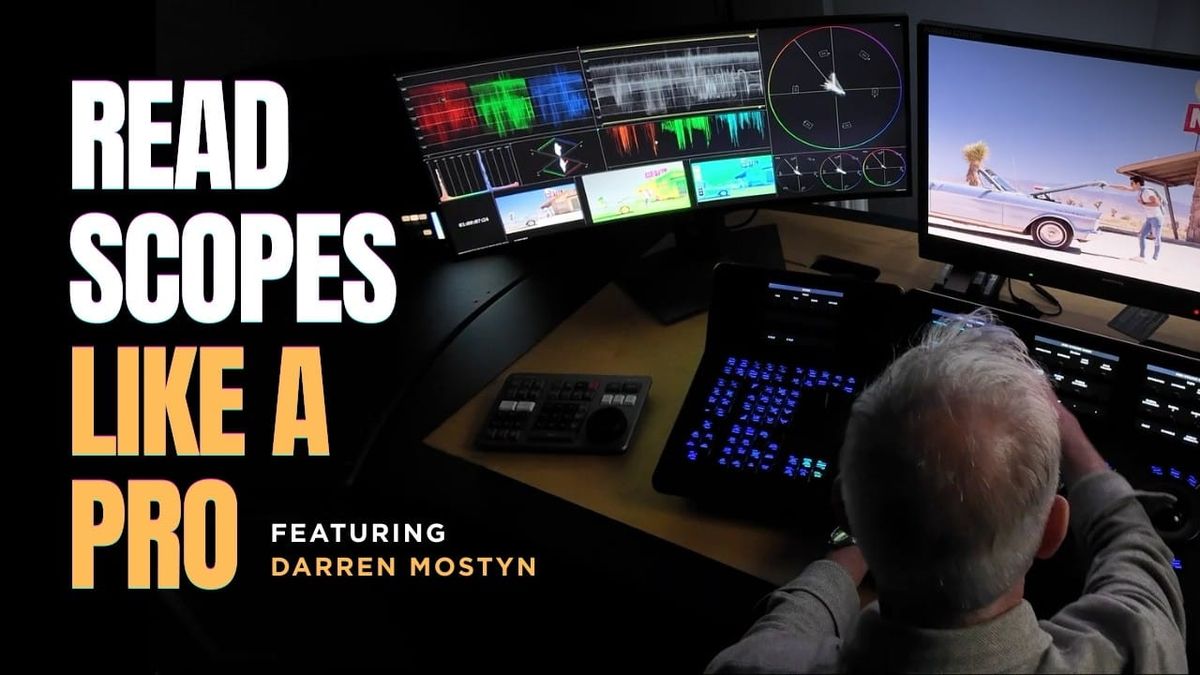
Darren Mostyn has been a broadcast colorist for 20 years. He doesn't use DaVinci Resolve's built-in scopes as his primary monitoring tool. He uses Omniscope alongside it, and the reasons why are worth understanding if you're serious about color work.
Why Resolve's Scopes Aren't Enough
DaVinci Resolve ships with a comprehensive scope suite — waveform, parade, vectorscope, histogram. For most grading work, that's sufficient. Mostyn's argument isn't that Resolve's scopes are wrong. It's that Omniscope gives him a level of customization, layout control, and specialized analysis that the built-in tools don't.
The distinction matters most in situations where he needs to isolate specific parts of the tonal range for analysis, or where he wants multiple scope types visible simultaneously in a layout configured exactly for his workflow. Resolve's scope panel works on Resolve's terms. Omniscope works on his.
False Color and Skin Tone Exposure
Mostyn's approach to exposure monitoring centers on false color rather than waveform for skin tone work. His target range is 35–55 on the false color scale for skin, with highlights allowed to peak into the gray area between 55 and 65. That's a practical bracket rather than a rigid rule — the point is to have a consistent reference point that keeps skin exposure anchored while the rest of the image is adjusted around it.
On the vectorscope, he monitors skin tone indicator position as a consistency check rather than a hard target. His read: being consistently above or below the skin tone line is acceptable as long as it's balanced across the scene. A subject who reads consistently five degrees off the skin tone line across multiple shots is a creative choice or a camera characteristic. A subject who wanders unpredictably across that line is a problem.
Shadow Analysis With the Bottom 15% Waveform
This is the scope that has no direct equivalent in Resolve's built-in tools, and it's the clearest example of why Mostyn reaches for Omniscope. The Bottom 15% waveform isolates and displays only the darkest 15 percent of the image's luminance range, giving him a dedicated view of shadow behavior without the rest of the tonal range creating visual noise in the display.
For shadow work — lifting blacks, managing shadow density, checking for clipping in the darkest parts of the frame — a standard waveform shows you everything at once. The Bottom 15% scope shows you exactly what you need to see. It's a targeted diagnostic tool for a specific part of the grade.
The Twin Peaks Scope
Omniscope's Twin Peaks scope is a multi-function tool that displays brightness, hue, and saturation simultaneously in a single view. Mostyn uses it primarily for white balancing and for checking saturation levels across the image without switching between scope types.
The practical advantage is speed and visual economy. Rather than toggling between a waveform for luminance, a vectorscope for hue, and a parade for saturation, the Twin Peaks scope surfaces all three in one place. For a colorist moving quickly through a timeline, reducing the number of scope switches per decision has real workflow value.
Scopes as Guides, Not Rulers
The thread running through Mostyn's entire approach is worth stating directly: he uses scopes to inform creative decisions, not to make them. As he puts it in the video: "I'm using them as a guide only... for me it's a creative decision at this point."
That's the distinction that separates technical competence from actual color work. Scopes tell you what's in the image. They don't tell you what the image should look like. A skin tone that reads below the vectorscope line might be correct for the scene's lighting conditions, the character's emotional state, or the director's visual intent. The scope flags it; the colorist decides.
When asked which single scope he'd keep if limited to one, Mostyn's answer is immediate: "I need them all."
Competitive Context
Omniscope competes with Resolve's built-in scopes and with other external monitoring tools like Scopebox (Mac-only), Lumentri Scopes in Premiere Pro, and hardware scopes from Blackmagic and Atomos. The specific advantage Omniscope offers is software flexibility — the ability to configure custom layouts, add specialized scope types like Bottom 15%, and run the tool independently of any particular NLE.
For colorists working exclusively in Resolve, the built-in scopes handle the majority of grading scenarios. The case for Omniscope strengthens for colorists who work across multiple platforms, need specialized scope types for specific workflows, or simply prefer the layout control that a dedicated scope application provides.
The Signal in the Noise
The most useful takeaway from Mostyn's breakdown isn't the specific tools — it's the philosophy behind how he uses them. Twenty years of experience has given him a framework for what each scope tells him and what it doesn't, and that framework is what makes the technical knowledge useful. The Bottom 15% waveform is only valuable if you know what you're looking for in the shadows. The skin tone indicator is only useful if you understand what consistent deviation from the line means in practice.
Scope literacy is a foundational skill for any serious colorist or DP, and Mostyn's approach is a good model: use scopes to identify what the image is doing technically, then make creative decisions about what the image should do.
Specs & Pricing
Omniscope is available for macOS and Windows. Current pricing is available at omniscope.me. DaVinci Resolve is free for the standard version; DaVinci Resolve Studio (required for some advanced features) is a one-time purchase of $295. Current pricing for both at their respective official sites.
Resources & Reads
- Full video with Darren Mostyn: https://www.youtube.com/watch?v=vt1T9h_vAqY
- Omniscope official site: https://omniscope.me
- DaVinci Resolve download and pricing: https://www.blackmagicdesign.com/products/davinciresolve