How to Edit Faster Without Cutting Corners
Editing slowly is rarely about skill — it's about organization, habits, and friction. Here's how to build speed into your editing workflow without cutting corners.

Editing slowly is rarely about skill. It's almost always about organization, habits, and the friction that accumulates from a poorly structured project. The editors who work fast aren't cutting corners — they've removed the obstacles that slow everyone else down before they ever touch the timeline.
Here's how to build that speed into your workflow.
Organize Before You Edit
The single biggest time investment that pays off in an edit is organization before the first cut. Bins labeled and structured. Footage rated and filtered. Audio synced. Multicam clips grouped. Every asset in its place.
This feels like overhead when you're eager to start cutting. It isn't. Every minute spent organizing at the start of a project saves five minutes of hunting for clips mid-edit. On a long project that math adds up to hours.
Set a rule: don't start the first cut until the project is organized. Hold the line.
Master Your Keyboard Shortcuts
The difference in editing speed between someone who uses keyboard shortcuts and someone who doesn't is significant and immediate. Every mouse click to a menu is slower than the keyboard equivalent. Every time you move your hand from keyboard to mouse you're losing time.
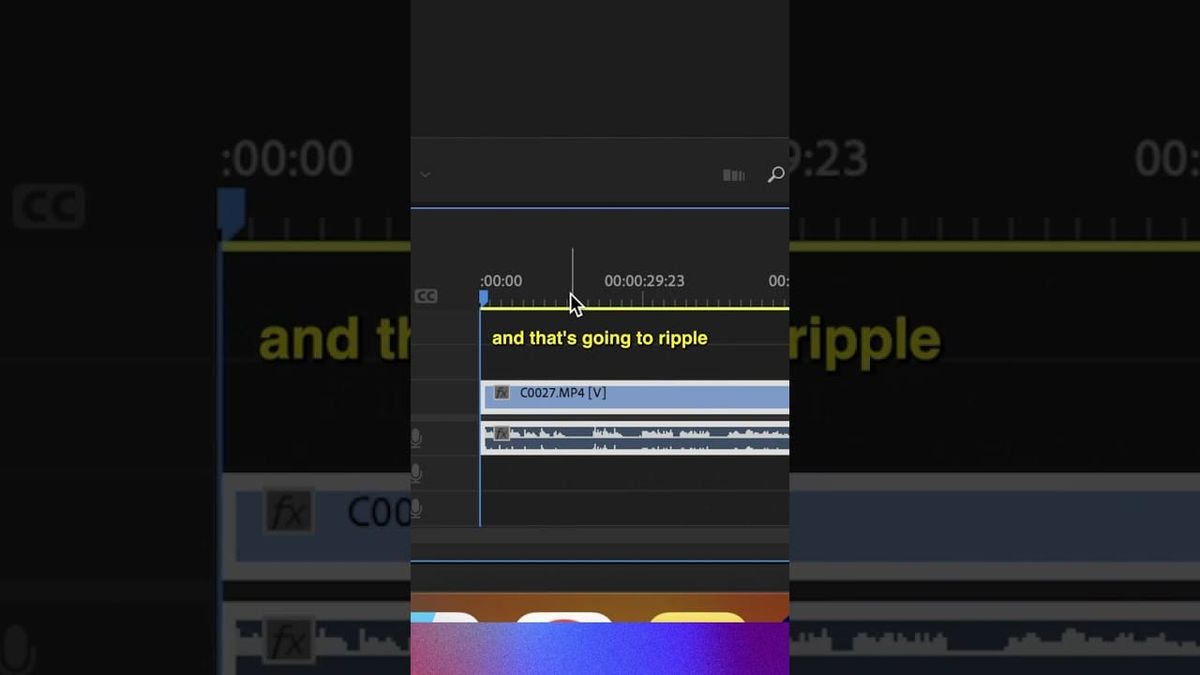
Learn the J-K-L keys for playback navigation. Learn the in and out point shortcuts. Learn your trim functions. Learn how to ripple delete, lift, and extract without touching the menu bar.
In Premiere Pro and DaVinci Resolve, the keyboard shortcut maps are customizable. Build a layout that matches how you work and practice it until it's muscle memory.
Use Proxy Media
Editing high-resolution footage — 4K, 6K, RAW — on a machine that isn't purpose-built for it produces lag, dropped frames, and timeline stuttering that makes editing slow and unpleasant. Proxy workflows solve this.
Proxies are low-resolution copies of your original footage, generated before the edit and linked to the original clips in your NLE. Your timeline plays back the proxies — which are small and fast — and relinks to the originals for final export and color.
DaVinci Resolve and Premiere Pro both generate and manage proxies natively. If your machine struggles with your camera's native footage, proxies should be your first step before anything else.
Build a Paper Edit Before Touching the Timeline
For documentary, interview-based, or narrative projects with a lot of footage, a paper edit — a written or text-based assembly of the story before you touch the timeline — prevents the most time-consuming trap in editing: getting lost in the footage.
Transcribe your interviews. Read through them. Mark the selects in text. Arrange them into a story structure on paper or in a document. Only then open the timeline and start building.
The paper edit doesn't have to be perfect. It has to be a map. Having a map before you cut means every decision in the timeline is about execution, not discovery.
Use Templates and Presets
For repetitive elements — title cards, lower thirds, color grades, audio settings — templates and presets eliminate redundant work across projects and within a single project.
Build a color grade preset for your most common footage type. Create a title template that matches your client's brand. Set up an audio preset with your standard EQ and compression settings. Apply them at the start of every relevant sequence and adjust from there.
The goal is to never start from scratch on something you've done before.
Focus on Story First
The most common editing mistake that creates slow, inefficient cuts is getting distracted by detail work before the story is locked.
Color grading a sequence that's going to be restructured. Perfecting a sound mix on a scene that gets cut. Adding visual effects to a moment that doesn't survive the rough cut. All of that time is lost when the story changes.
Cut a rough assembly. Get the story working. Lock the picture. Then do the finish work. In that order, every time.