Runway's Motion Brush Explained: What It Does and When to Actually Use It
Runway's Motion Brush lets you paint motion directly onto a still image before generation — telling the model exactly what moves, how fast, and in which direction. Here's how it works and when to use it.
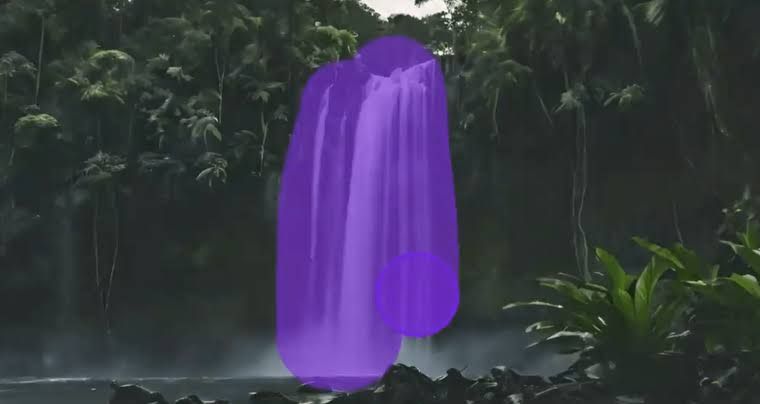
Most AI video generators give you a text prompt and a prayer. You describe what you want, hit generate, and hope the model interprets your intent correctly. Motion Brush is Runway's answer to that problem — a tool that lets you paint motion directly onto a still image, telling the model exactly which parts of the frame should move and how, before generation even begins.
It's one of the most distinctive features in any AI video platform, and it's consistently underused by people who don't fully understand what it can do.
What Motion Brush actually is
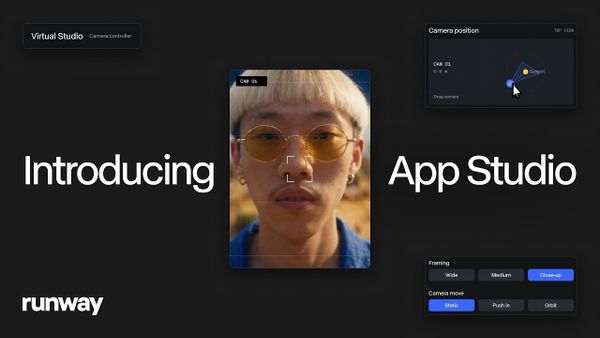
Motion Brush is a painting tool that works on top of a still image — a reference photo, an AI-generated image, or a frame from existing footage — before you generate a video from it. You paint over specific regions of the image and assign those regions motion direction and intensity using vector controls. When the video generates, the model uses your painted zones as instructions: this area moves left, that area moves up, this background stays still.
In Gen-4.5, Motion Brush supports up to five independent motion zones per image, each moving differently. You could paint a person walking forward while keeping the background static, or paint water flowing downward while trees sway sideways in the same frame. Each zone gets its own directional control — you're not just telling the model "add motion," you're specifying where, how fast, and in what direction for each element independently.
Why this matters more than it sounds
Without Motion Brush, getting a specific element to move in a specific way requires precise text prompt engineering — and even then, the model might decide the camera should move instead of the subject, or move the wrong element entirely. Motion Brush removes that ambiguity. You paint the instruction directly onto the frame.
The practical difference shows up most clearly in two scenarios:
When you have a still image you want to animate. A product shot, a portrait, a landscape — anything where you want specific, controlled motion rather than letting the model decide. Motion Brush lets you isolate which elements animate and which stay still, which is the difference between a subtle, intentional animation and everything moving chaotically.
When text prompts keep missing. If you've tried prompting for a specific motion and the model keeps interpreting it differently than you intended, Motion Brush bypasses the language layer entirely. You show the model what you mean instead of describing it.
How to use it: the actual workflow
- Upload your still image into Runway's image-to-video workflow
- Click the Motion Brush icon in the toolbar
- Paint over the region you want to move — use a larger brush for broad areas, smaller for precise elements
- Assign motion direction using the directional vector controls (the arrow indicates direction, the length indicates intensity)
- Add additional zones if needed — up to five, each with independent settings
- Write your text prompt as normal, then generate
A few things that improve results: paint slightly larger than the element you want to move, since the brush zones influence adjacent pixels. Keep motion intensity moderate on first attempts — extreme settings tend to produce artifacts. And use the "Camera: Static" setting in Runway's camera controls alongside Motion Brush when you want subject movement without camera drift, since the two controls work together.
When Motion Brush is the right tool
- Animating a still product image with specific, controlled movement
- Creating subtle environmental motion (leaves, water, hair) while keeping a subject still
- Directing human movement — a wave, a turn, a walk — when text prompting keeps producing the wrong interpretation
- Isolating foreground motion from a static background
- Creating looping ambient animations from a single still image
When Motion Brush isn't the right tool
- Shots where camera movement is the primary intent — Camera Director handles that separately and more precisely
- Complex action sequences where multiple overlapping subjects need to interact — the zone-based system works best on distinct, separable elements
- When you don't have a starting still image — Motion Brush only works in image-to-video mode, not text-to-video from scratch
The credit consideration
Motion Brush doesn't cost extra credits beyond the standard Gen-4.5 rate (25 credits per second). It's a control layer on top of a standard image-to-video generation. The credit math is the same whether you use Motion Brush or not — but the output quality tends to be better with it for motion-specific shots, which means fewer failed generations and better credit efficiency in practice.
The Signal in the Noise
Motion Brush is the clearest example of what Runway means when it positions itself as a filmmaker's tool rather than a prompt-and-pray generator. Every other major AI video platform — Kling, Veo, Pika — takes your text description and interprets it.
Runway gives you a paintbrush and lets you show the model what you mean. That's a fundamentally different creative relationship with the tool, and for shots where specific controlled motion matters, it's worth learning properly rather than skipping past it.