How to Lip Sync AI Video: The Tools and Workflows That Actually Work
Getting AI characters to talk convincingly comes down to three approaches: native audio models, dedicated lip sync tools and talking avatars. Here’s how each works and when to use it.

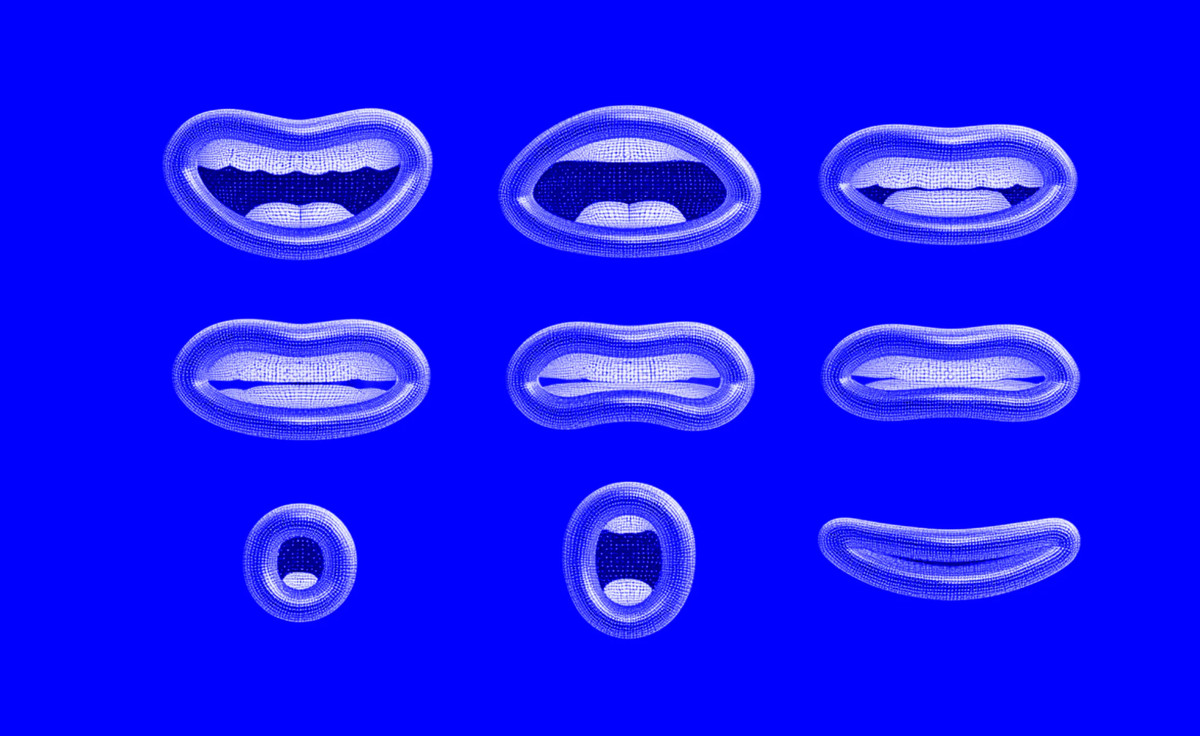
Getting an AI character to talk convincingly is one of the harder parts of AI filmmaking. Mouths that drift out of sync with the dialogue, or move without matching the emotion of the line, break the illusion faster than almost anything else.
The good news is that there are now several reliable ways to do it. Most fall into three approaches: generating dialogue and lip movement together, syncing new audio to existing footage, or animating a still image into a talking character. Here’s how each works and when to use it.
Approach 1: Native Lip Sync in Video Models
The newest video models can generate dialogue and mouth movement at the same time. You write the line in your prompt, and the model produces the character speaking it, with audio and lip sync built in.
Kling 4.0 generates visuals and audio together, with dialogue synced to the character’s performance. Seedance 2.5 also generates synchronized audio with its clips, and Pika’s H3 Flex can export the soundtrack as separate dialogue, score and effects stems, covered in Pika H3 Flex Generates Video With Separate Audio Stems, Starting at a Penny a Second.
Best for: New scenes with short lines of dialogue, where you’re generating the shot from scratch anyway.
Watch out for: Less control over the exact voice, delivery and timing. Long or complex lines are more likely to drift, so keep dialogue short and specific in your prompts.
Approach 2: Lip Sync on Existing Footage
Dedicated lip sync tools take a video and a separate audio track, then re-animate the mouth to match the new audio. That works on live-action footage and AI-generated clips alike.
Sync Labs, which now goes by sync., is one of the best-known tools in this category, available through a browser studio and an API. It’s built to handle difficult shots like close-ups, partially hidden faces and fast dialogue, and it also offers dubbing and text-to-speech.
This approach separates the performance from the voice. You can record or generate the dialogue first, get the delivery right, then sync it to your best visual take.
Best for: Dubbing into other languages, replacing or fixing lines after the fact, and pairing a strong AI-generated shot with a separately recorded voice.
Watch out for: Results depend on the source footage. Clear, front-facing shots sync best, and extreme angles, heavy motion or covered mouths are harder.
Approach 3: Talking Images and Avatars
Avatar and talking-image tools animate a single photo or character image so it speaks a script or audio file. They’re the fastest way to get a talking character, especially for presenter-style videos.
HeyGen focuses on realistic presenter avatars and translating videos into many languages, covered in HeyGen’s Video Model Comes to fal With Native Audio and 2K. Hedra focuses on expressive or stylized characters made from a single image, which suits animated or illustrated work.
Best for: Explainers, presenters, social content and stylized characters.
Watch out for: Limited body movement and camera motion compared with full video generation. These tools work best for medium shots of a character talking to camera.
A Workflow That Works
- Lock the dialogue first. Write and record, or generate, the voice track before you make the visuals. Changing lines later means redoing the sync.
- Choose the approach by shot type. Use native audio for short lines in generated scenes, a dedicated sync tool for longer dialogue and dubbing, and an avatar tool for talking-to-camera presenters.
- Design for sync. Frame speaking characters facing the camera, keep mouths visible and avoid fast motion during dialogue.
- Keep characters consistent. Use the same character references across shots, covered in How to Keep Characters Consistent in AI Video.
- Check at full size. Watch every dialogue shot at 100% with audio, and look for drifting timing, mushy mouth shapes on “p,” “b” and “m” sounds, and frozen expressions.
Consent and Likeness
Lip sync tools can make anyone appear to say anything, which makes consent essential. Only sync audio to people who have agreed to it, whether that’s an actor, a client or yourself, and be careful with voice cloning.
Many tools require consent when you create an avatar of a real person, and some add watermarks to show a video has been modified. For commercial work, get written permission for both the face and the voice, and disclose AI-generated dialogue where your platform or client requires it.
Competitive Context
Lip sync is moving into the video models themselves. As native audio improves in models like Kling, Seedance and Pika, dedicated sync tools are increasingly used for what models still struggle with: longer dialogue, precise performance and dubbing.
For AI sound beyond dialogue, see Mirelo SFX 2.0 Brings AI Sound Design to Video. For choosing how to start a shot in the first place, see Text-to-Video vs. Image-to-Video: Which Should You Use?.
The Signal in the Noise
There isn’t one best lip sync tool, because the right choice depends on the shot. Native audio is fastest for short lines in new scenes, dedicated sync tools give the most control over dialogue, and avatar tools are the quickest route to a talking presenter.
The bigger factors are preparation and restraint. Locked dialogue, sync-friendly framing and short lines do more for convincing results than any single tool.
What’s given you the most convincing lip sync so far? Share the tools and tricks that worked for you in the comments.
Specs & Pricing
- sync. (Sync Labs) Hobbyist: $5/month + $0.05/sec
- sync. Creator: $19/month + $0.05/sec
- sync. Growth: $49/month + $0.0475/sec
- sync. Scale: $249/month
- HeyGen: Free plan available; exact pricing on HeyGen’s website
- Hedra: Pay-as-you-go; exact pricing on Hedra’s website