Text-to-Video vs. Image-to-Video: Which Should You Use?
Text-to-video is fast and flexible, while image-to-video locks in the look before anything moves. Here’s when to use each, where reference-to-video fits and how to combine all three.

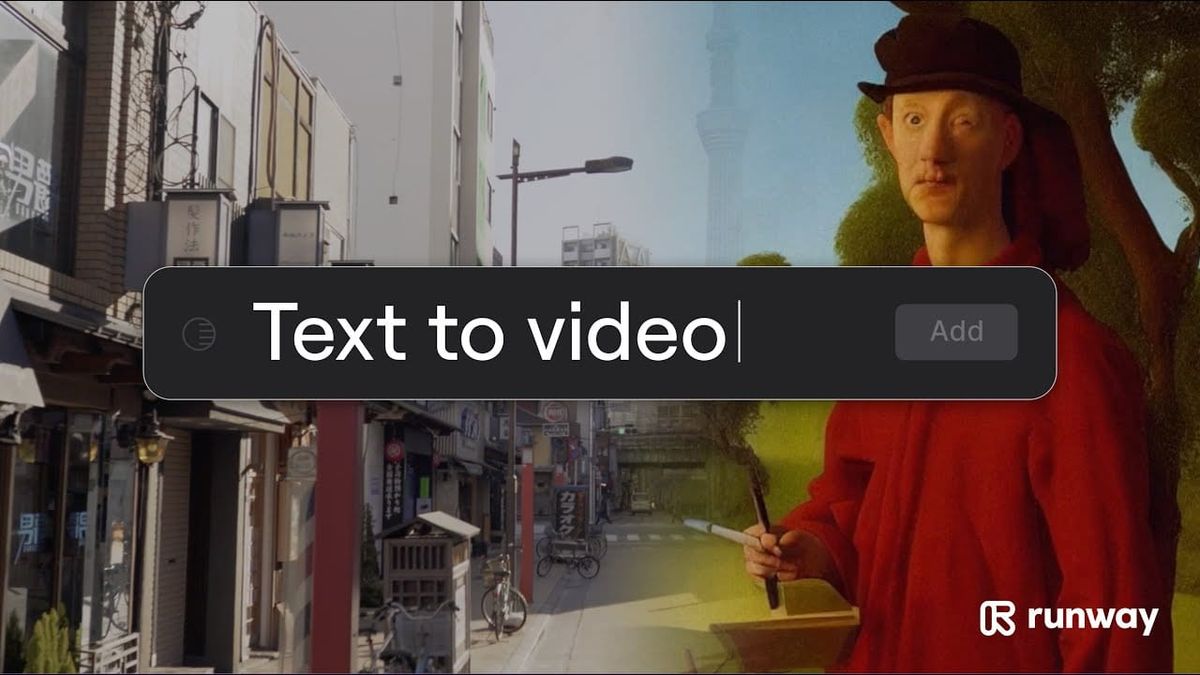
Nearly every AI video model now offers at least two ways to start a clip: describe it in a text prompt, or give the model an image to animate. Many add a third, reference-to-video, which uses images, video or audio as guides without making any of them the first frame.
Which one you pick shapes how much control you have over the result. Here’s how each mode works, what it’s best for and how most creators combine them.
Text-to-Video: Fast and Flexible
Text-to-video generates a clip entirely from a written prompt. The model decides what the characters, setting, lighting and framing look like based on your description.
It’s the fastest way to explore ideas. You can test a concept, a camera move or a mood in seconds without preparing any assets.
The tradeoff is control. Two generations from the same prompt can look very different, and keeping a character or location consistent from shot to shot is difficult when the model invents them from scratch each time.
Best for: brainstorming, mood tests, B-roll, abstract or stylized shots, and anything where the exact look matters less than the idea.
Image-to-Video: Lock In the Look First
Image-to-video starts from an image you provide, usually used as the first frame. Your prompt then describes what happens next: how the camera moves, what the subject does and how the scene changes.
Because the composition, character, wardrobe, lighting and color are set before the model generates any motion, image-to-video gives you far more control over the final look. Many creators make their start frames in an image model like Google’s Nano Banana, covered in Nano Banana 2.1 Cuts the Price of Nano Banana 2 in Half, then animate them.
Magnific’s recent Magnific Move tutorial shows the approach in practice. It starts with a still image that leaves empty space for graphics, then uses it as the start frame for a 30-second Seedance 2.5 shot, covered in Magnific Move Lets You Add Motion Graphics to Video by Describing Them.
Some models also support first-and-last-frame generation, where you supply the opening and closing images and the model fills in the motion between them. That’s useful for transitions and shots that need to land on a specific composition.
Best for: brand work, client projects, recurring characters, product shots and any scene where you know what it should look like before it moves.
Reference-to-Video: Guides Without a Fixed First Frame
Reference-to-video sits between the two. You give the model reference images, and on some models video or audio as well, to define a character, product, location or style, but the model decides how to frame and compose the shot.
Recent models have pushed this mode hard. Seedance 2.5 accepts up to 50 references in a single generation, and Kling 4.0 supports reference-based generation alongside text and first-frame modes.
References are the strongest tool for consistency across a sequence, since the same character references can carry through every shot. For more on that workflow, see How to Keep Characters Consistent in AI Video.
Best for: multi-shot sequences, recurring characters, products that must look accurate and stories that need continuity.
How They Compare
- Speed to first result: Text-to-video is fastest; image-to-video and reference-to-video require preparing assets first.
- Control over the look: Image-to-video gives the most control over a single shot; reference-to-video gives the most control across many shots.
- Consistency: Text-to-video is weakest; reference-to-video is strongest.
- Prompting: Text-to-video prompts describe everything; image-to-video prompts focus on motion and action; reference-to-video prompts describe the scene and how references should be used.
A Workflow That Uses All Three
Most experienced AI filmmakers don’t pick one mode. A common workflow looks like this:
- Explore with text-to-video. Test ideas, camera moves and tone quickly.
- Design key frames as images. Lock in characters, locations and the overall look with an image model.
- Animate with image-to-video or references. Use start frames for hero shots, and references for sequences that need consistent characters.
- Draft cheaply, then finish. Preview at low resolution and complete only the takes you keep, covered in How to Use Seedance 2.5 Draft Mode to Cut Your AI Video Costs.
- Upscale your final picks. Covered in How to Upscale AI Video to 4K.
For tips on structuring prompts across several shots, see How to Write Multi-Shot Prompts for AI Video.
Competitive Context
All three modes are now standard across the major models. Seedance 2.5, Kling 4.0 and Pika’s new H3 Flex all support text, image and reference-based generation, and platforms like fal, Runway and Higgsfield offer them side by side.
The differences between models show up more in how well they follow references and preserve a start frame than in which modes they offer. Testing the same start frame or references across two or three models is often the quickest way to find the best fit for a project.
The Signal in the Noise
If you’re just starting out, text-to-video is the easiest way to learn what a model can do. As soon as the look of a shot matters, image-to-video gives you more control, and references are what make a sequence hold together.
The practical rule: use text to find the idea, images to set the look and references to keep it consistent.
Which mode do you start with most often, and why? Share your workflow in the comments.
The Details
- Text-to-video: Prompt only; fastest; least control and consistency
- Image-to-video: Image as first frame plus a motion prompt; strongest single-shot control
- First-and-last-frame: Opening and closing images, with the model generating the motion between them
- Reference-to-video: Images (and on some models video or audio) as guides; strongest consistency across shots
- Models supporting all three: Seedance 2.5, Kling 4.0, Pika H3 Flex, among others
- Reference limits: Up to 50 per generation on Seedance 2.5