Magic Mask Taking Forever in DaVinci Resolve? Here’s How to Fix It
If Magic Mask takes minutes to track a short clip in DaVinci Resolve, the cause is usually your node tree, settings, or media. Here’s how to fix it.

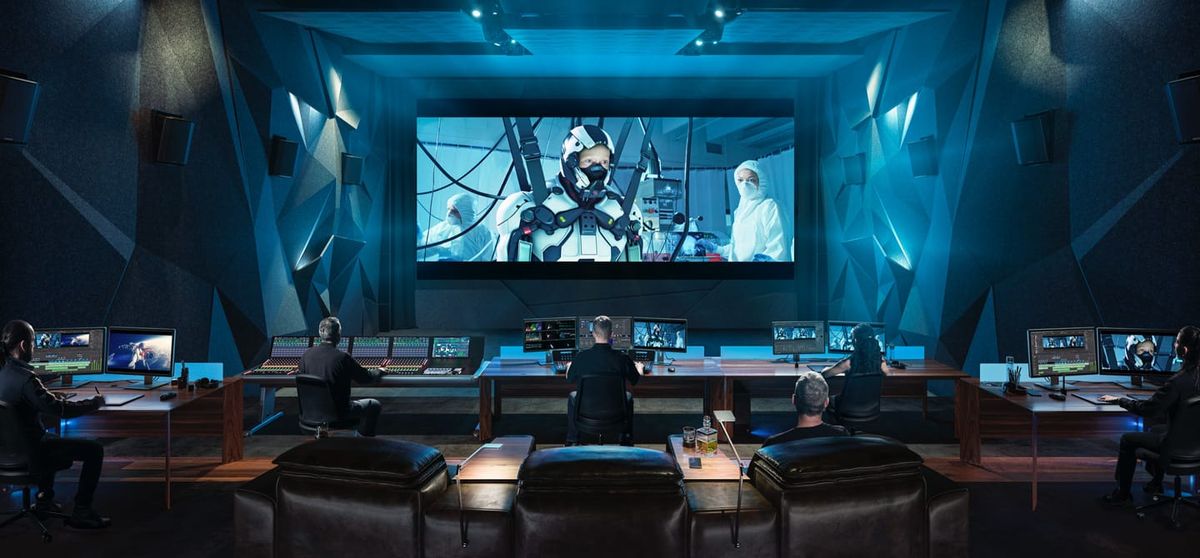
Magic Mask is one of DaVinci Resolve Studio’s most useful AI tools, letting you isolate a person or object for color correction and effects. But tracking can sometimes crawl, turning a 10-second clip into a long wait.
On most modern systems, Magic Mask should track a short clip in seconds to a minute or two, not half an hour. If it’s taking much longer, the cause is usually your node setup, your settings, or your media rather than the tool itself.
Here’s how to find the problem and speed it up.
First, Know What Normal Looks Like
Magic Mask runs on your GPU, so speed varies with hardware. Unofficial PugetBench results compiled by DaVinci Resolve Club show Faster-mode tracking averaging about 32 frames per second on an NVIDIA RTX 5090, 18 fps on an RTX 5060 Ti, and 7 fps on an Apple M4 Max.
Even at 7 fps, a 10-second clip at 24fps, which is 240 frames, should track in well under a minute. If yours takes many times longer, something else is slowing it down.
Check What’s Running in the Node Tree
The most common cause of slow tracking is other effects running at the same time. When Magic Mask tracks, Resolve still processes the clip’s other nodes, and heavy effects can slow every frame dramatically.
Temporal noise reduction is a frequent culprit, along with Depth Map and heavy Fusion effects. Track your mask before adding those effects, or temporarily disable them while tracking and turn them back on afterward.
Choose the Right Quality Mode
Magic Mask offers Faster and Better modes. Faster builds a quicker, lower-detail mask, which works well for rough isolation, while Better keeps more edge detail at a higher processing cost.
Use Faster while you’re building and testing the mask, and switch to Better only for mattes where the edge quality will be visible in the final image.
Track Only What You Need
Tracking a full clip when you only need a few seconds wastes time. Set your mask on a clear reference frame, then track only the range you need.
Magic Mask in Resolve 20 and later can track forward and in reverse in one pass from your reference frame. Starting from a frame where the subject is clearly visible gives faster, cleaner results.
Cache the Result
Once a mask tracks correctly, cache it so Resolve doesn’t recalculate it. In the Magic Mask palette’s three-dot menu, choose Render in Place Magic Mask and pick a location for the cached matte.
Resolve creates an external matte node that downstream corrections can use. As long as the source and timing don’t change, you won’t have to track it again.
If you hand the project off to someone else, include the cached matte files. The project file alone doesn’t carry them.
Check Your Media
Highly compressed formats like H.264 and H.265, common from phones and mirrorless cameras, are harder for your system to decode frame by frame. That decoding load adds to Magic Mask’s own processing.
Generating optimized media or proxies, or transcoding to an edit-friendly codec like ProRes or DNxHR, can make tracking noticeably faster.
Check Your GPU Settings
Make sure Resolve is using your GPU correctly. In Preferences, under System and Memory and GPU, confirm that GPU processing is set to the right mode for your system, such as Metal on Mac or CUDA on NVIDIA, and that the correct GPU is selected.
Keep your graphics drivers and Resolve itself up to date. Magic Mask performance has improved across Resolve versions, and older versions can be noticeably slower.
If you need to lower your timeline resolution to speed things up, check the final matte at full resolution before approving it.
Your Hardware Matters
Magic Mask depends heavily on GPU power. Systems with older or integrated graphics will track much more slowly than recent dedicated GPUs or Apple Silicon Macs.
If you use Magic Mask often, GPU performance is worth weighing when you upgrade. For a look at Apple’s latest editing machines, see Apple’s Mac Studio and Mac mini With M6 and M5 Ultra for Editing and AI.
Competitive Context
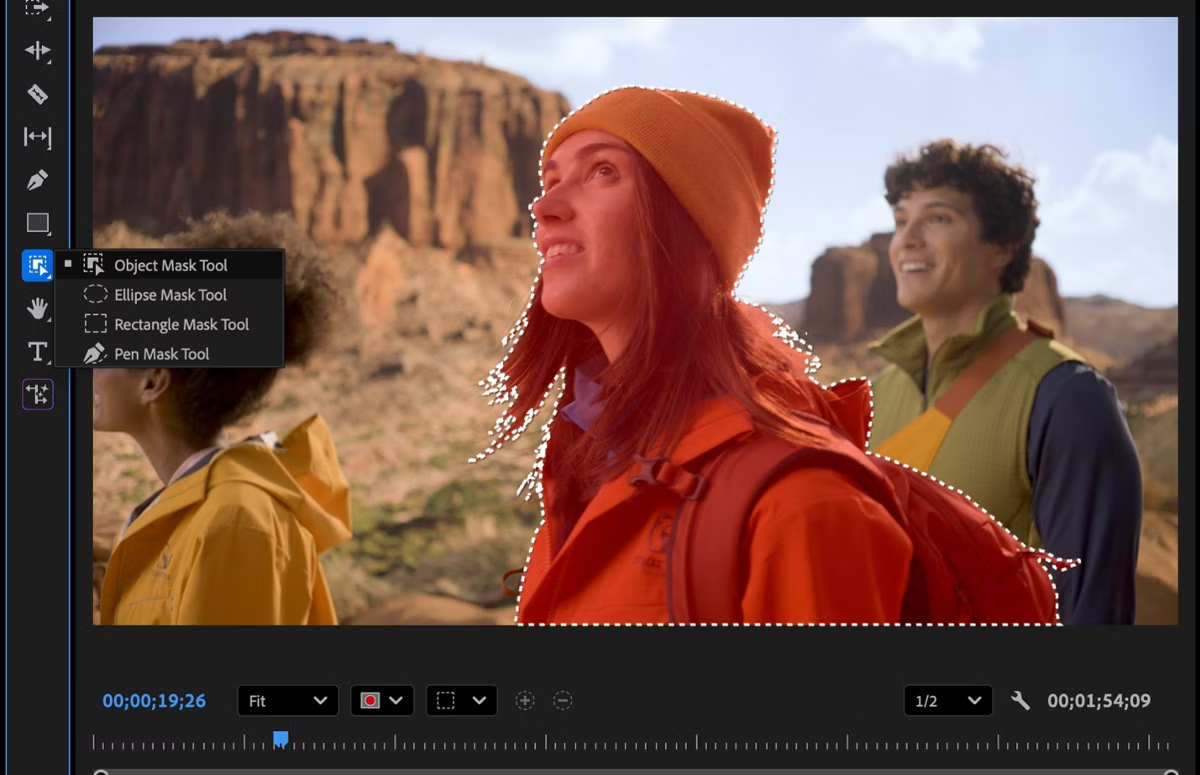
Magic Mask is a Resolve Studio feature, so it isn’t available in the free version of Resolve. Free users can still isolate subjects with Power Windows, qualifiers, Fusion masks, and standard tracking.
Adobe Premiere Pro offers its own AI-powered masking tools, and each app handles tracking differently. Resolve’s advantage is that Magic Mask works directly inside its color page, so a tracked matte can feed straight into a grade.
For more ways to speed up Resolve, see The DaVinci Resolve Default Settings You Should Change.
The Signal in the Noise
When Magic Mask is slow, start with the node tree. Disabling noise reduction and other heavy effects while tracking fixes most cases.
From there, use Faster mode while working, track only the frames you need, cache the matte when it’s done, and convert heavily compressed footage to an edit-friendly format. Most systems should then track a short clip in seconds, not minutes.
What’s your go-to trick for faster Magic Mask tracking? Share it in the comments.
The Details
- Availability: DaVinci Resolve Studio
- Biggest slowdown: Heavy effects like temporal noise reduction running during tracking
- Quality modes: Faster for rough masks, Better for final mattes
- Caching: Render in Place Magic Mask (three-dot menu)
- Media: Optimized media, proxies, or ProRes/DNxHR for compressed footage
- GPU: Confirm GPU processing mode and selected GPU in Preferences